




Android’s handy flashlight feature is helpful during power outages.
Though if you are not in danger of facing an immediate outage, you’d likely want a flashlight to check dark corners for missing items.
But it’s not always convenient to scroll through menus to find it.
Luckily, you can customize how you access it by adding a shortcut to your Android home screen or opening it with a voice command.
Or if you can’t stand your phone’s default flashlight, you can also install a handy third-party app to make it easier to use.
It’s worth knowing every method for any trusty Android phone in case you need it in an emergency or one method becomes unresponsive.
Our guide outlines all the best methods for turning on your flashlight or torchlight.
This flashlight app fixes the worst thing about the Pixel 9 series
Take a page out of Apple’s notes, Google
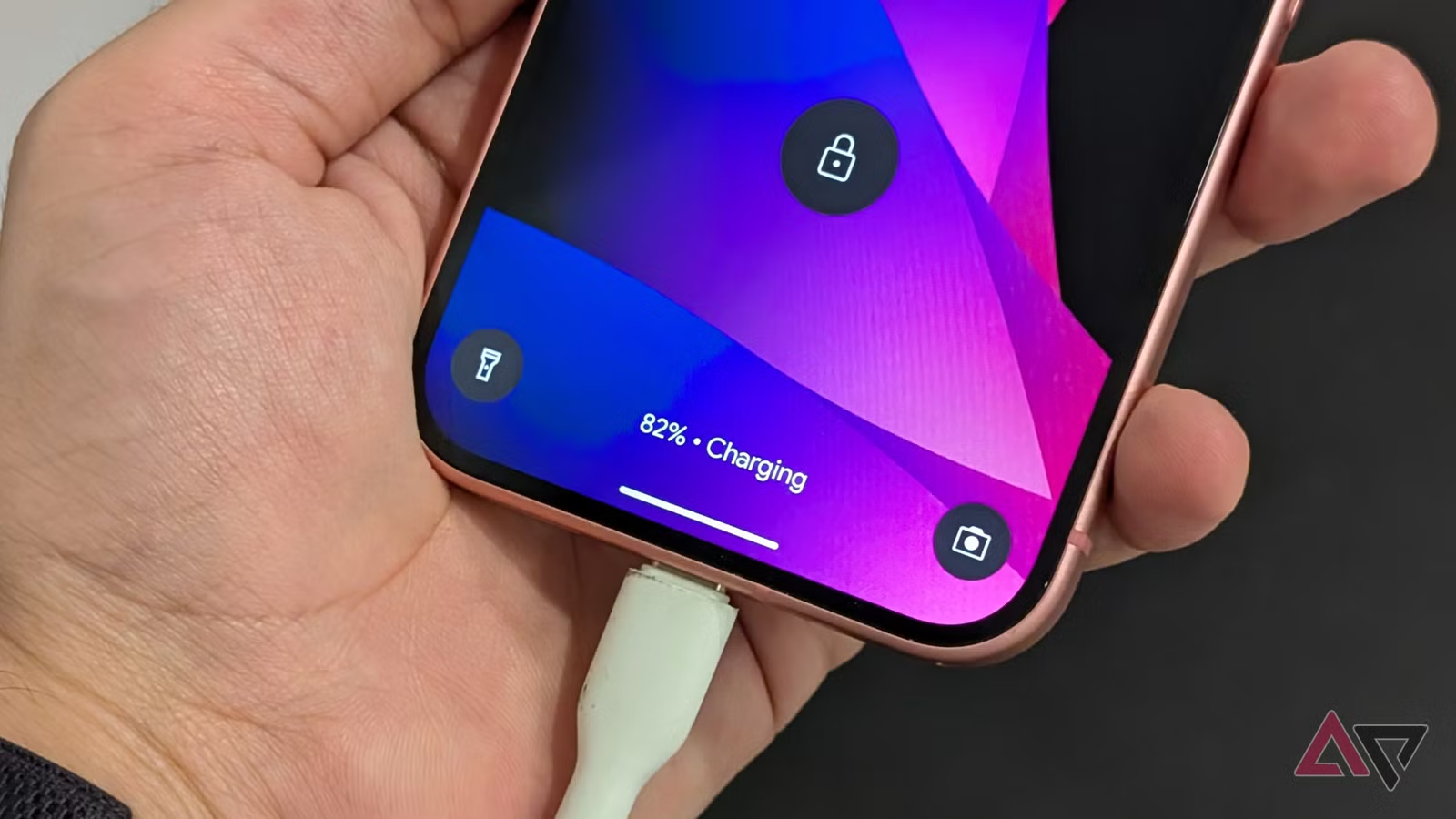
Add a flashlight shortcut on the lock screen
Since Android 14, you can customize your Pixel’s lock screen with various clock styles, fonts, colors, and quick shortcuts.
With quick shortcuts, you can place a camera, Do Not Disturb (DND) mode, a QR code scanner, and a torch or flashlight on the lock screen, among other features.
On Pixel phones running Android 14, 15, and 16, you can add a flashlight shortcut directly to your lock screen. Other Android brands, like Samsung and Realme, also offer this convenient feature.
You don’t need the latest software, as it supported the shortcut before Android 14. If your device doesn’t support it, use alternative methods.
Here’s how to customize your lock screen to add and use a flashlight shortcut.
Steps will vary by phone. The exact location of settings and availability of certain features (such as lock screen shortcuts or specific gestures) can vary depending on your Android phone’s manufacturer (for example, Samsung, Pixel, Motorola) and its custom Android skin (such as One UI or stock Android).
How to add a torch or flashlight shortcut to Google Pixel lock screen
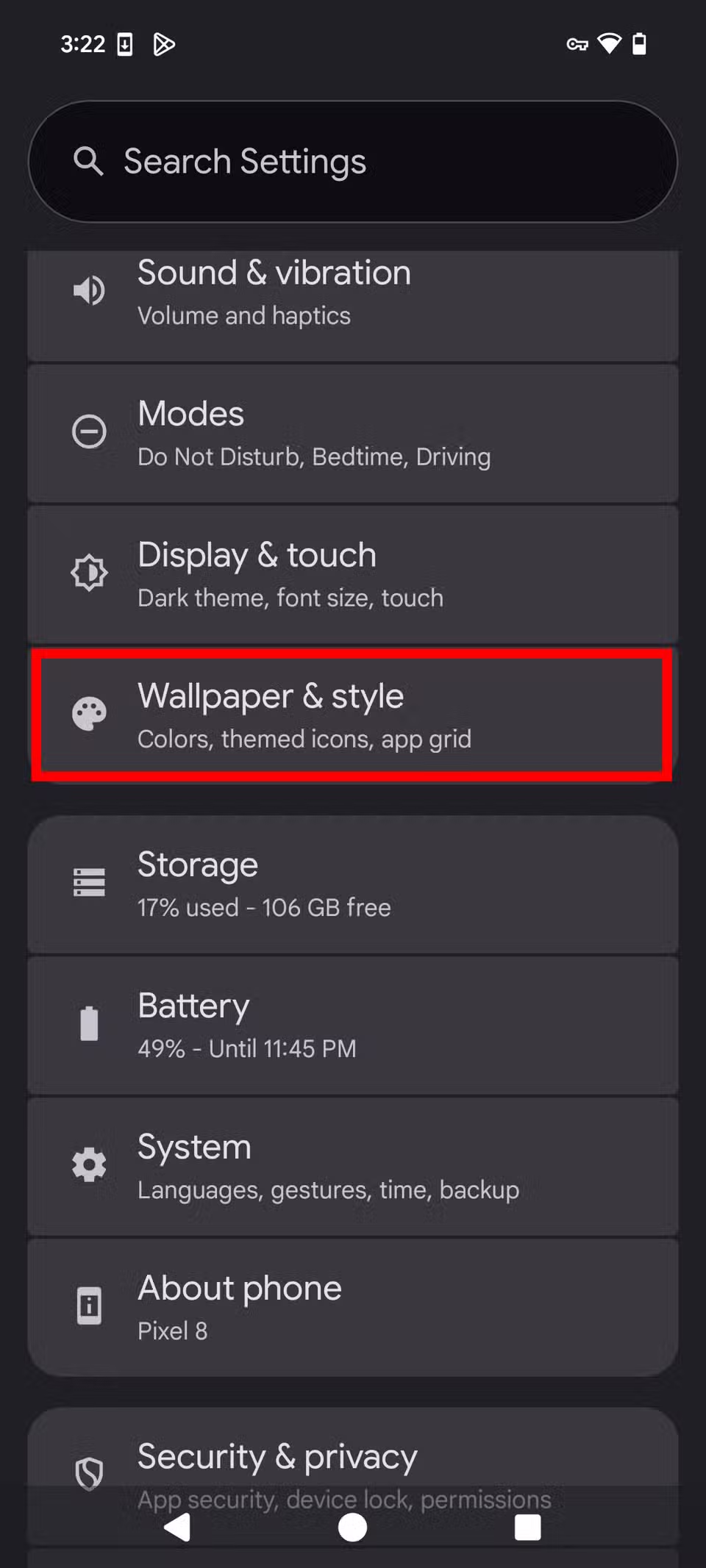
- Open Settings on your Pixel phone.
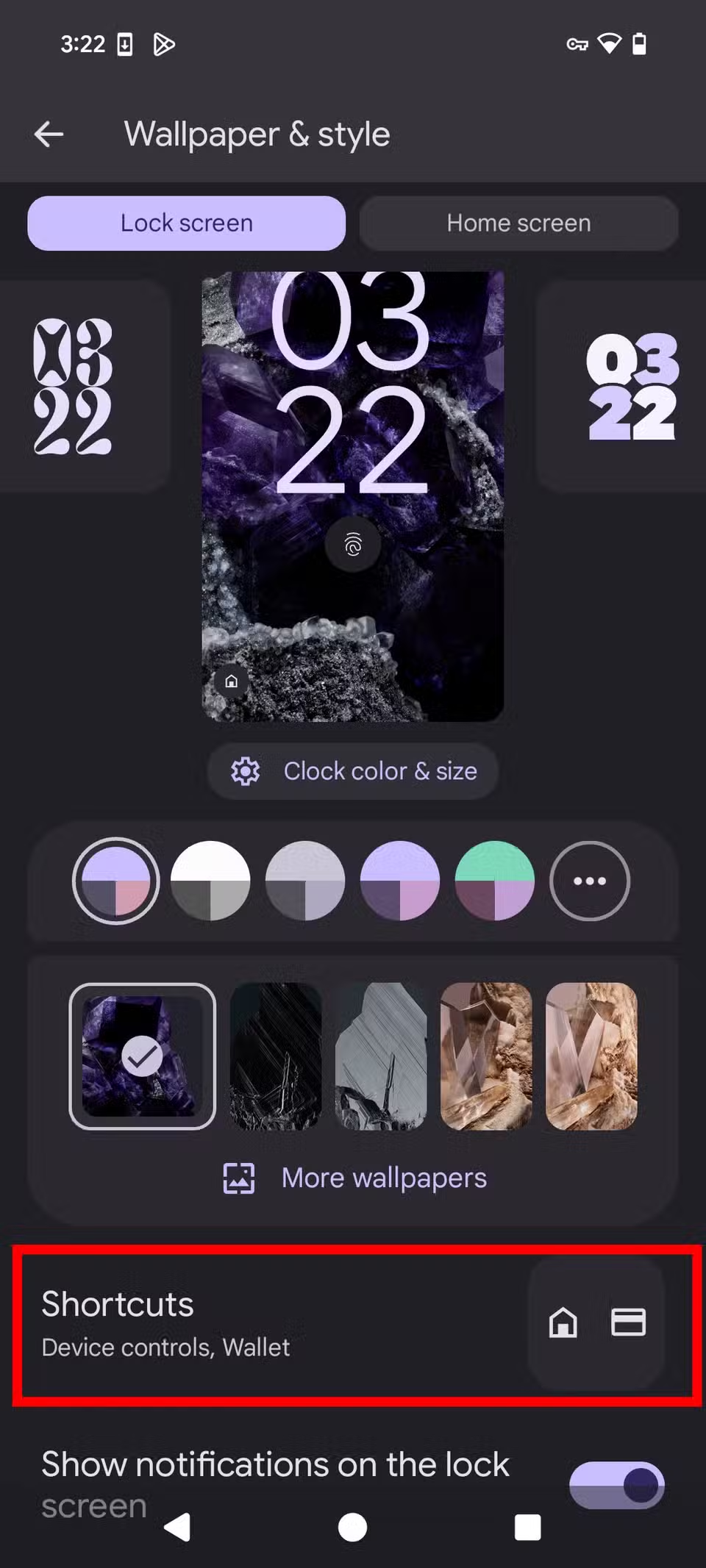
- Scroll to Wallpaper & style.
-
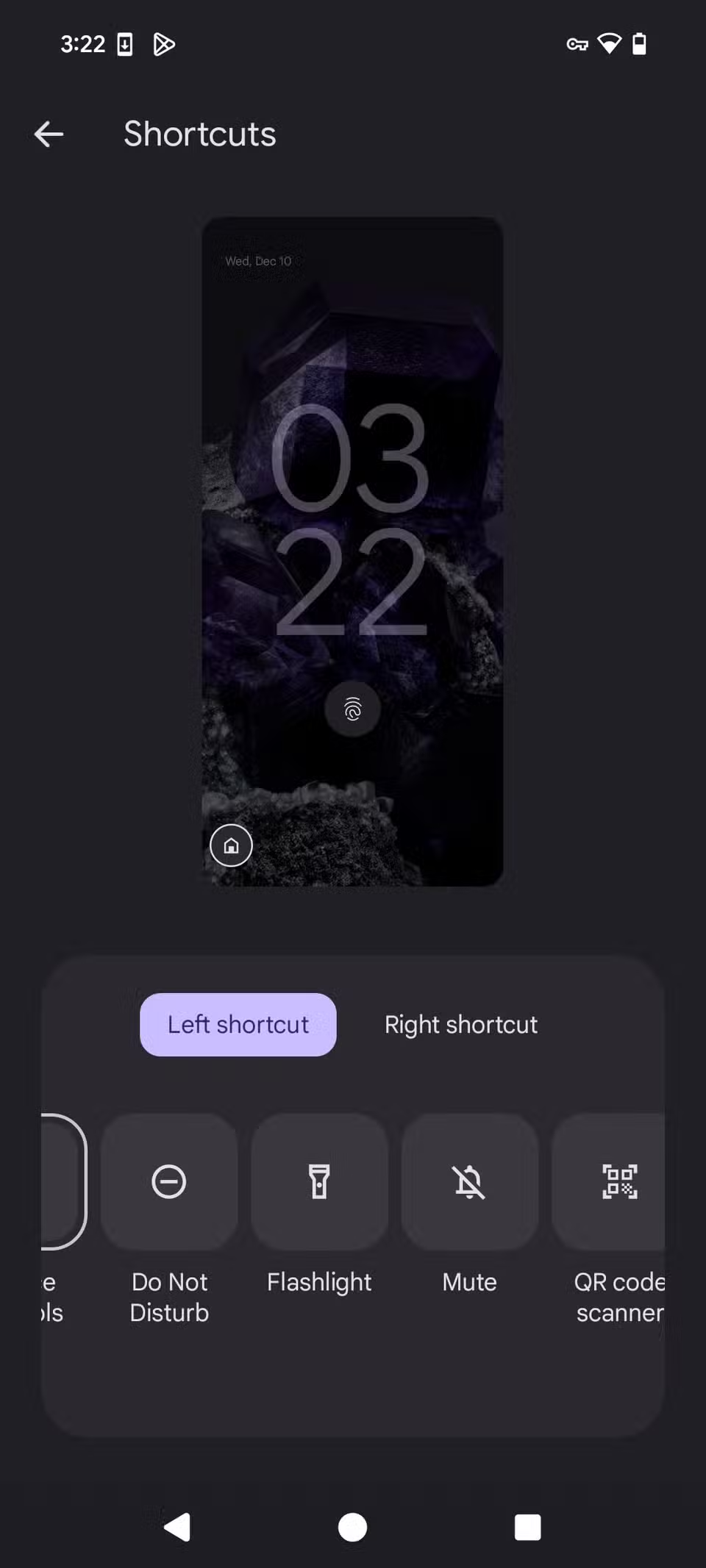
Select Lock screen and tap Shortcuts.

- Select Torch or Flashlight as the left or right shortcut on the Pixel lock screen.
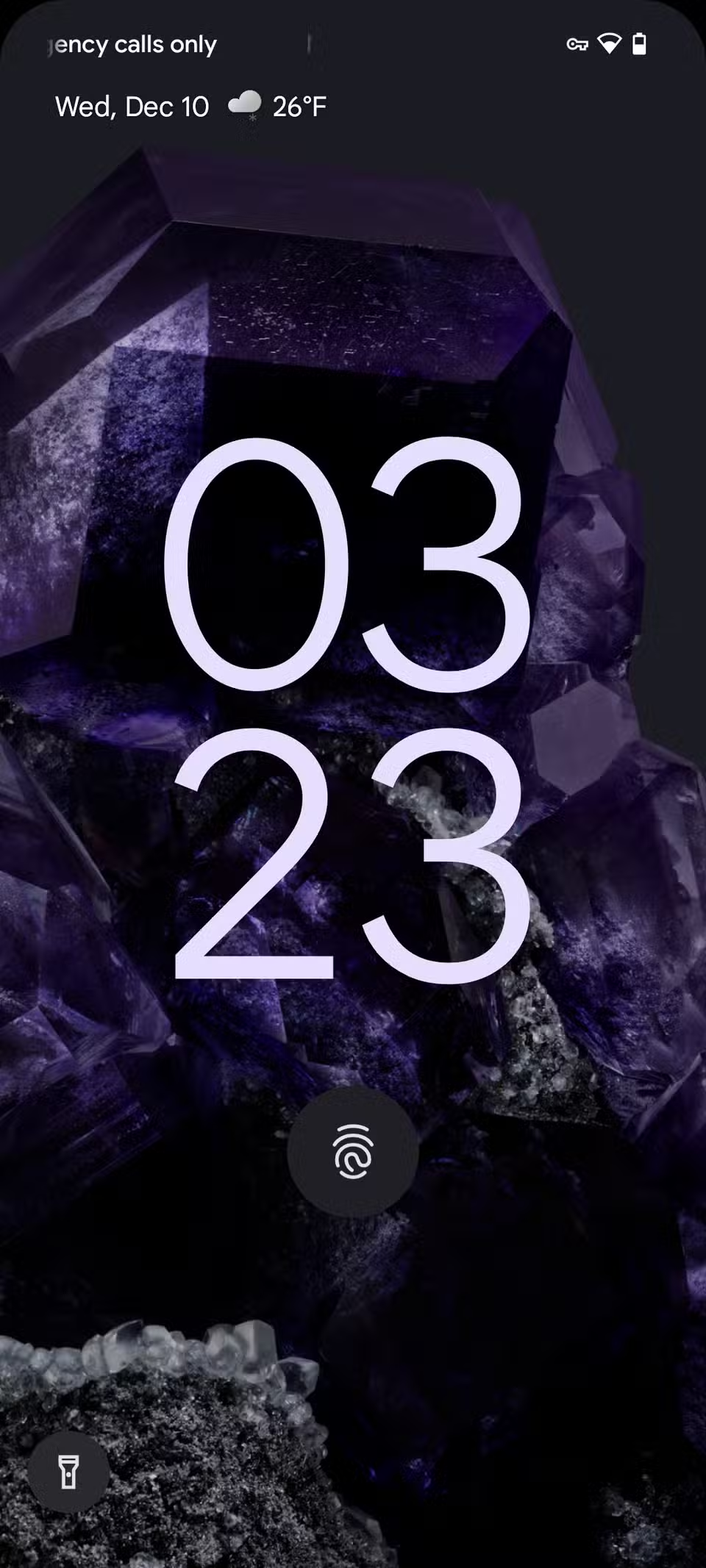
- Use the power button to turn off the screen and check the lock screen.
- Tap and hold a torch icon or flashlight icon to turn on the flashlight.
-
Tap it again to turn off the flashlight.
How to add a torch or flashlight shortcut to a Samsung Galaxy phone lock screen
- Open Settings on your Samsung phone.
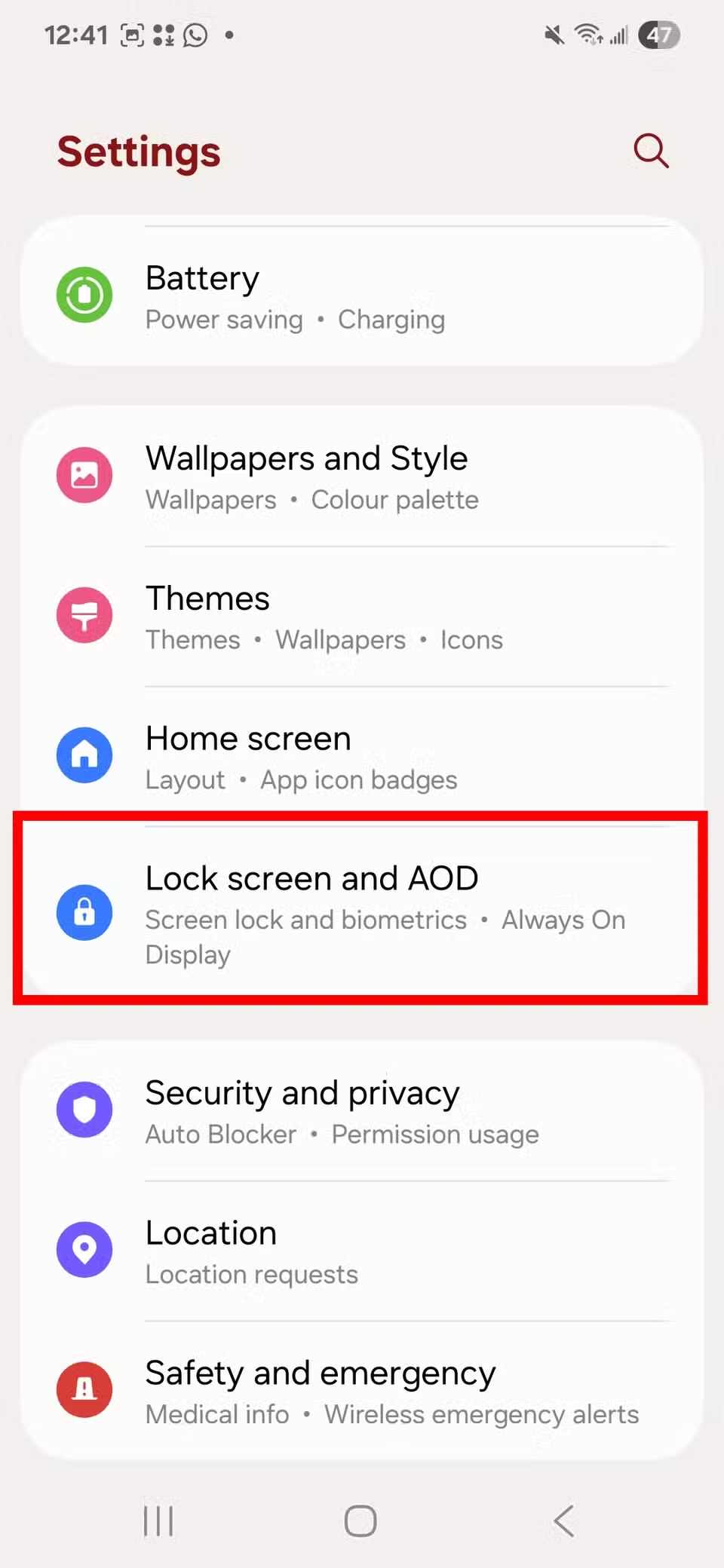
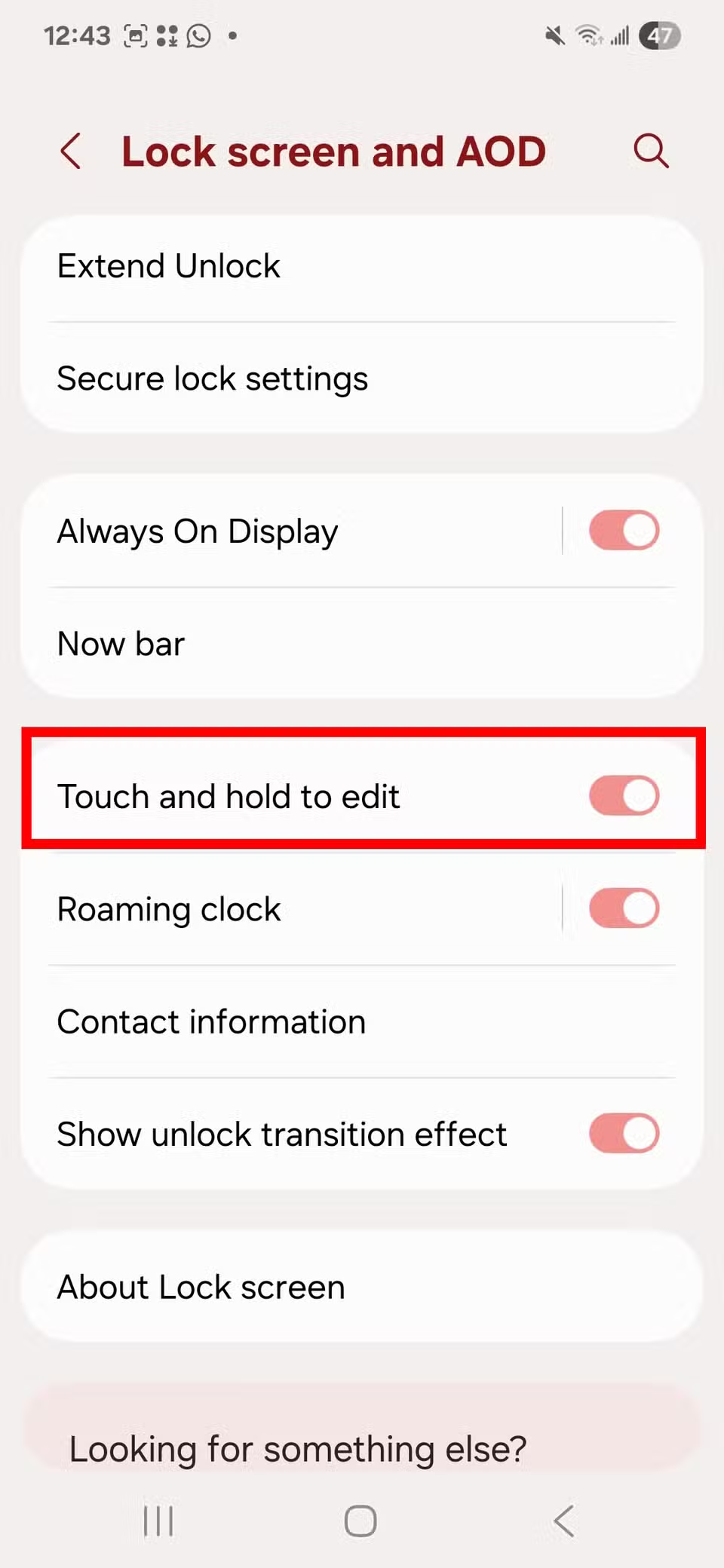
- Select Lock screen and AOD.
-
Toggle on Touch and hold to edit.

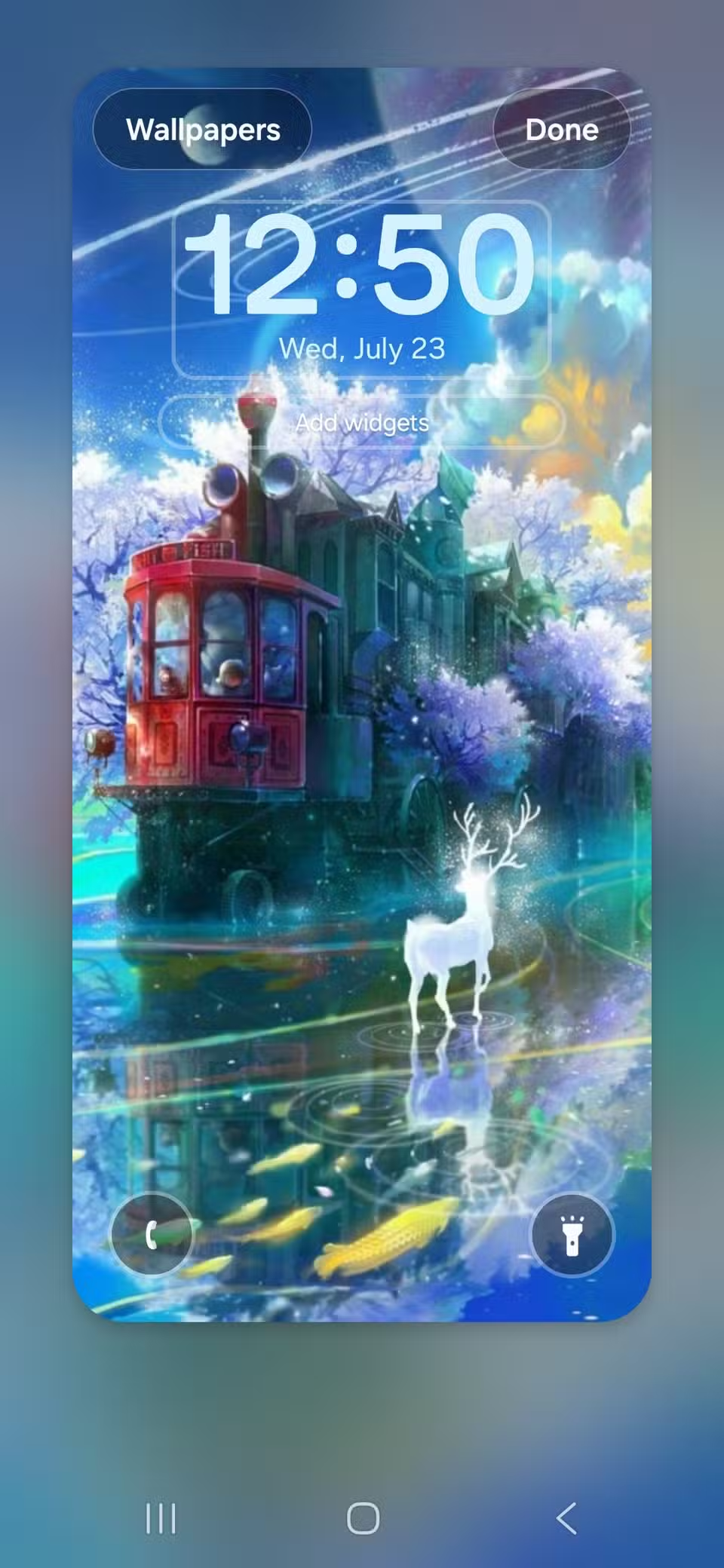
- Return to your lock screen and tap and hold the time to open the Edit lock screen menu.
-
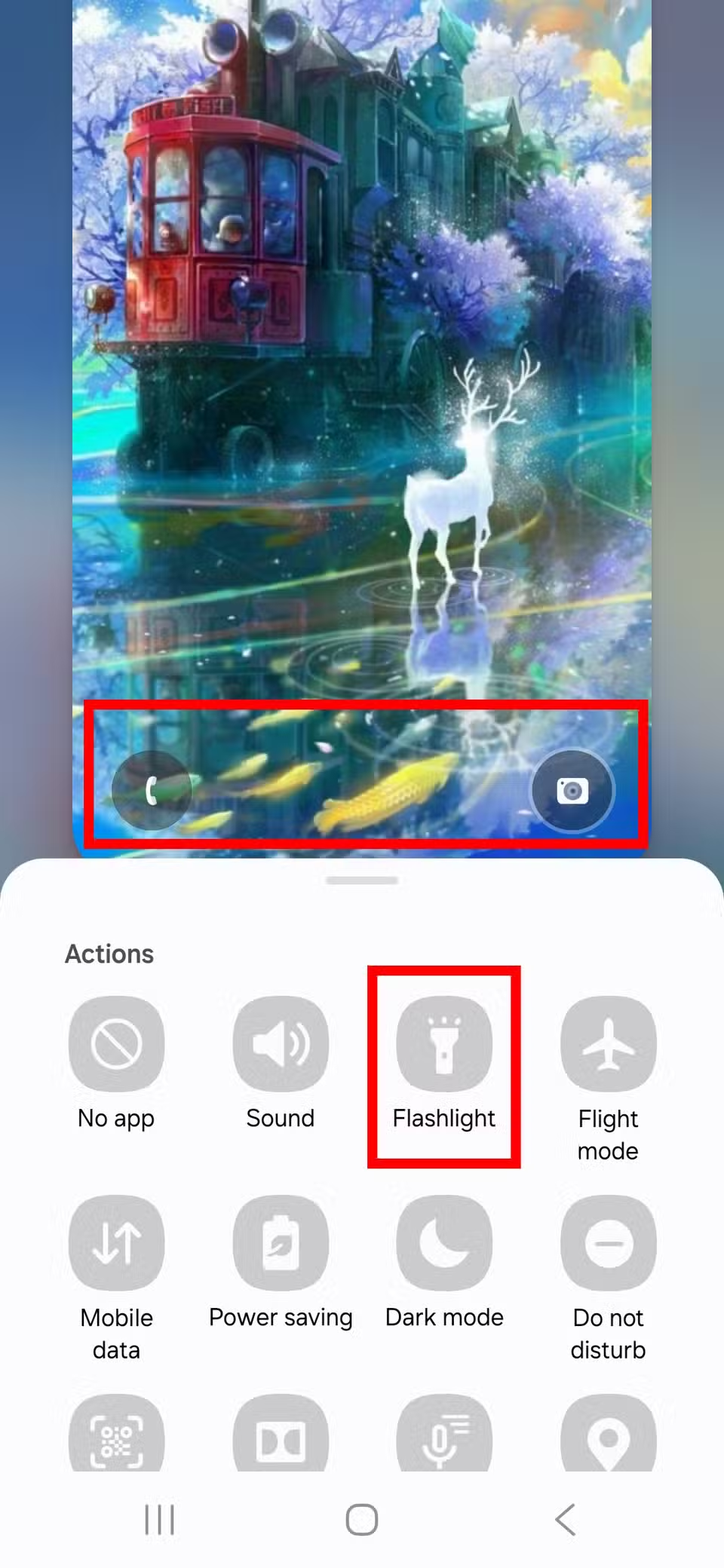
Tap the left or right icons (your default might be your phone and camera app) to change the shortcut, then select Flashlight.
-
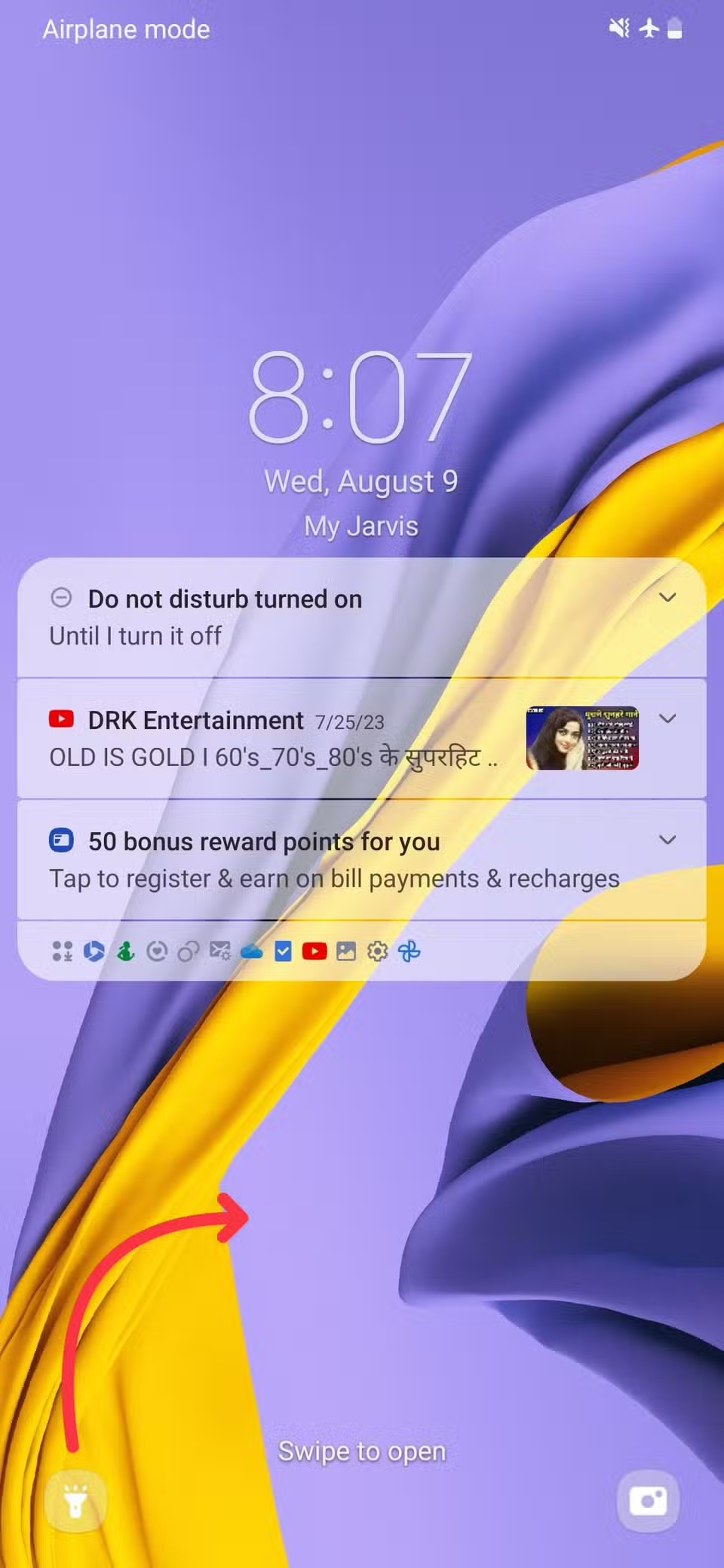
Lock your Samsung phone. The gesture to activate a toggle works differently here. Long tap and swipe right (for a left shortcut) or swipe left (for a right shortcut) to switch on or off the flashlight.
While your phone’s LED flashlight is energy-efficient, keeping it on for extended periods (for example, hours) can cause your phone to warm up slightly and naturally consume more battery than a quick flick.
It’s generally safe, but be mindful of prolonged use.
If the flashlight isn’t working even with the added shortcut enabled, check your camera permissions and restart your phone to rule out interference from third-party apps.
My accounts weren’t safe because of these 6 lock screen weaknesses
Your accounts and device data might still be fair game
Use Quick Settings
The Quick Settings panel is more widely supported than lock screen shortcuts on most Android phones. Plus, it’s the second-quickest way to turn on the flashlight.
Access it by swiping down from the top of your screen to expand it, then tapping the icon. Here’s how:
- Swipe down from the top of the screen to access Quick Settings. On some phones, you can use two fingers to skip the notification panel.
- Tap the Flashlight or Torch tile to turn it on. Tap it again to turn it off.
If you don’t see the tile, add it to the panel. Here’s how:
- Tap the Pencil icon in the lower-left corner to edit Quick Settings. On some phones, tap the overflow menu (the three-dot icon) first.
- Select the option to edit tiles.
-
In edit mode, browse through the available tiles for the flashlight.
- Long press the tile and drag it to your desired position.
- Return to Quick Settings. The Flashlight tile appears where you placed it.
- Tap Flashlight to turn it on. Tapping the Flashlight tile again will also turn it off.
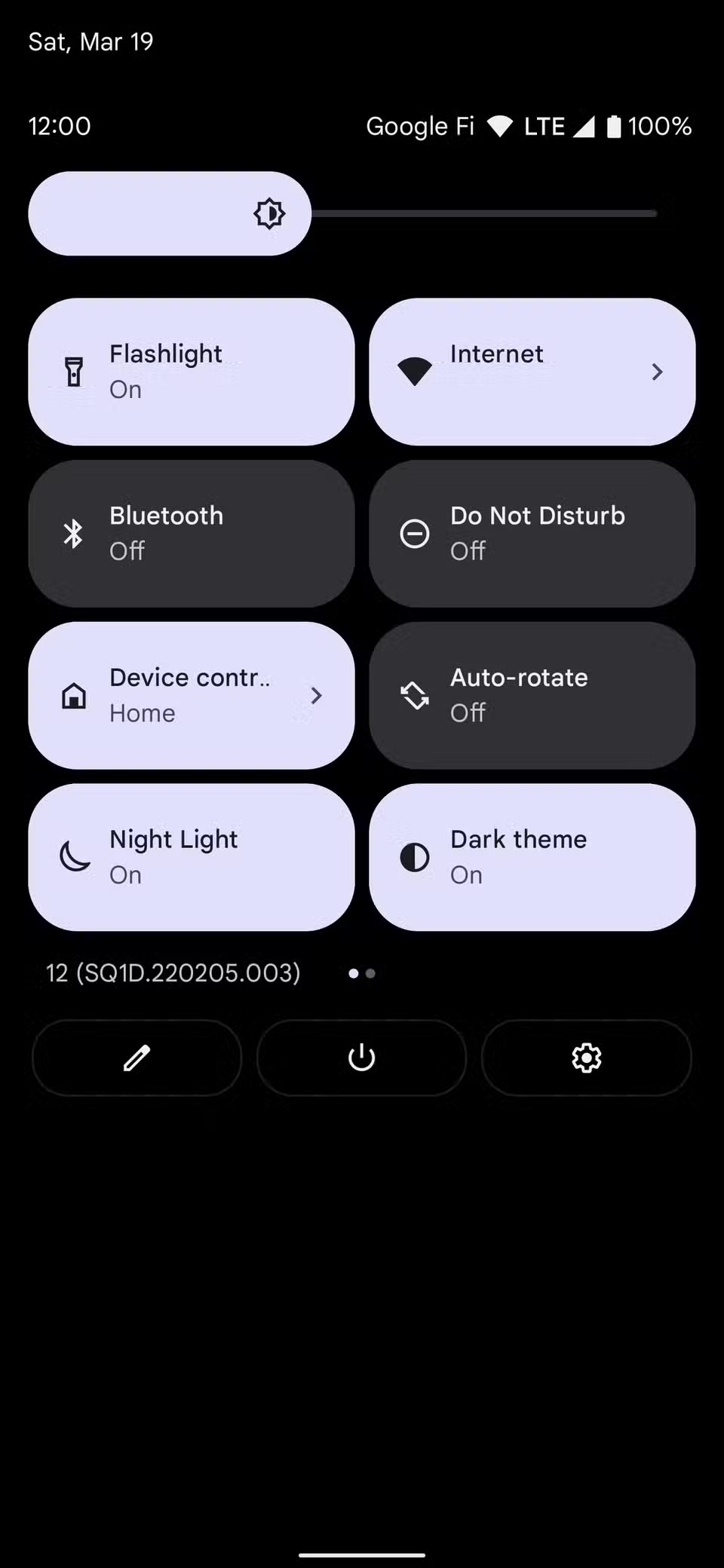
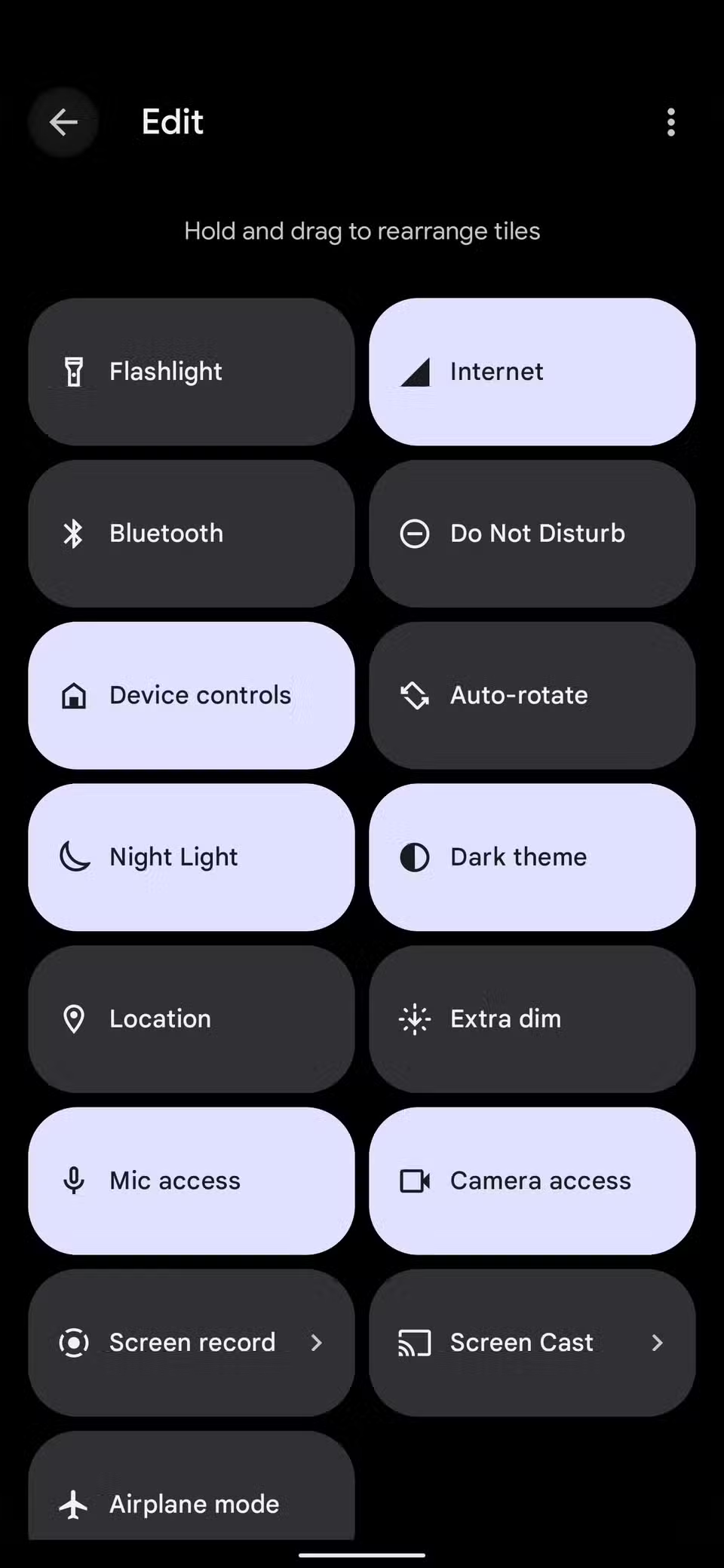
If you frequently use the flashlight on your phone, place it among the first four tiles for quick access. Tap the Pencil icon to rearrange its position.
You can also adjust the brightness by long pressing the tile and using the slider, if your Android phone allows it.
How I turned Android’s new Quick Settings into the perfect control center (and so should you)
QPR1 is where it’s at
The At a Glance widget on your home screen and lock screen shows information beyond the date, time, and weather.
You can customize it to show more, including delivery status for food orders, departure time for events, and upcoming events.
The flashlight is also on the list, but it’s limited to Pixel phones.
When activated from the At a Glance widget, it doesn’t help you turn on the flashlight. However, a reminder appears to tell you that it’s on. It’s best to use it with the lock screen shortcut.
You’ll use the shortcut to turn on the torch, then turn it off with the reminder. It’s helpful if you frequently forget to turn off the torch.
Here’s how to use the widget:
- Long press the phone’s home screen and select Home settings.
-
Tap the settings icon beside At a Glance.
-
Scroll down and turn on the Flashlight toggle.
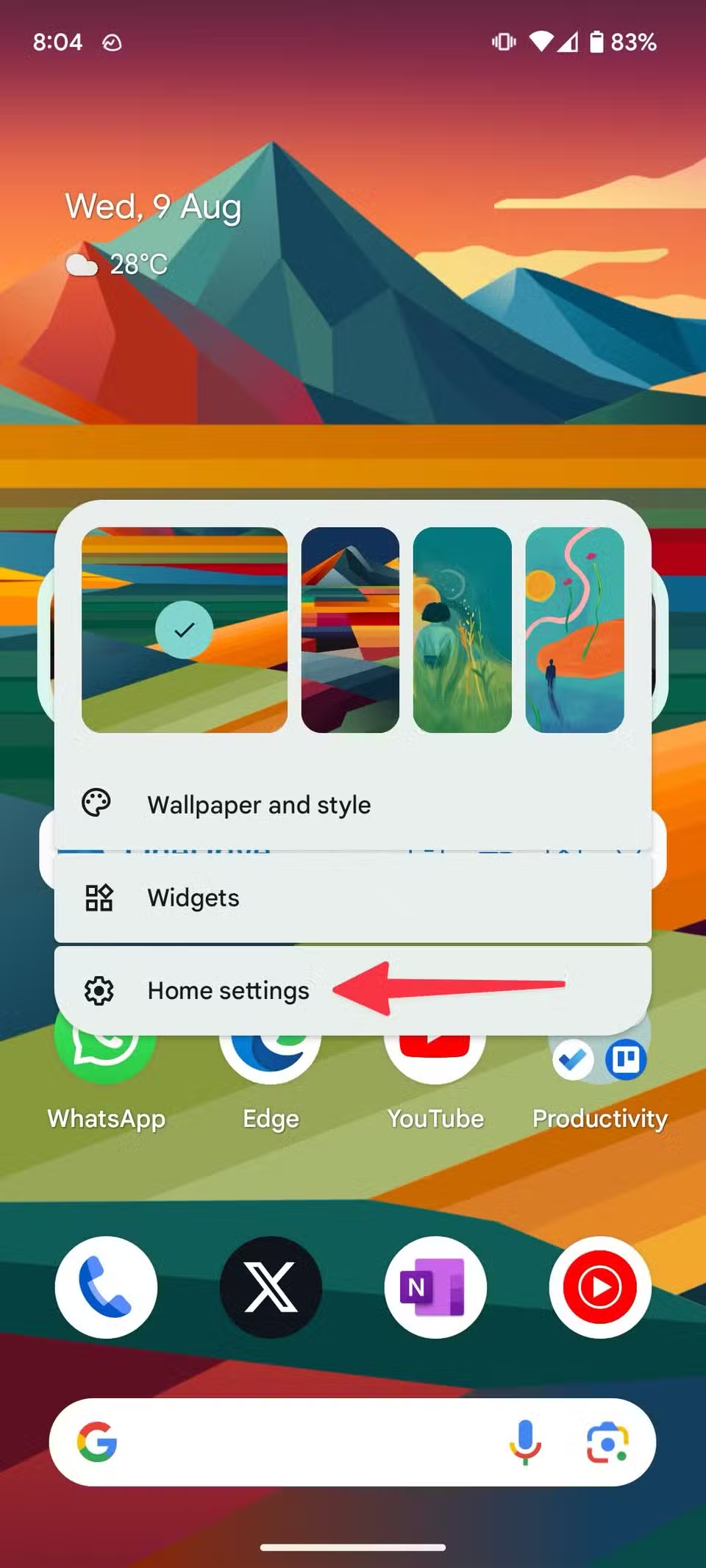
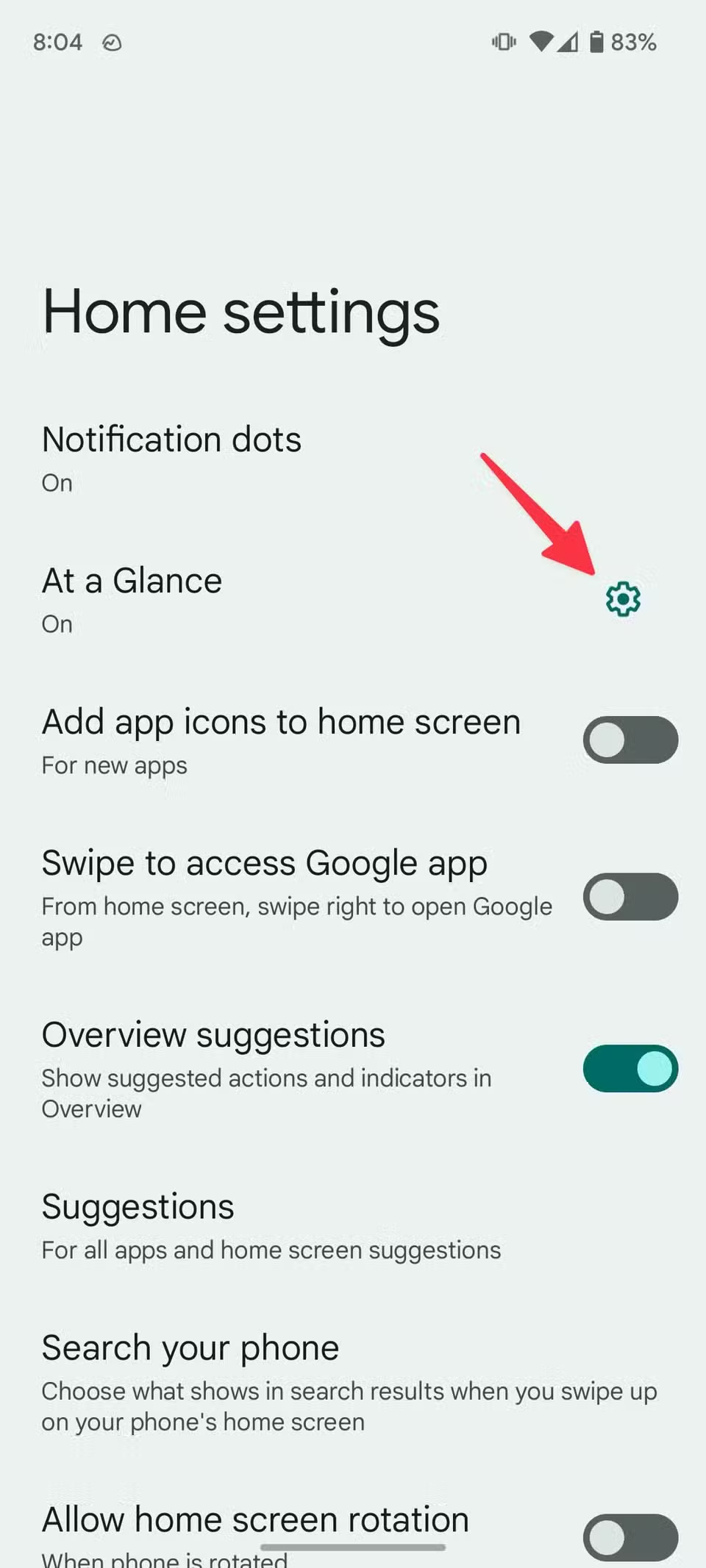
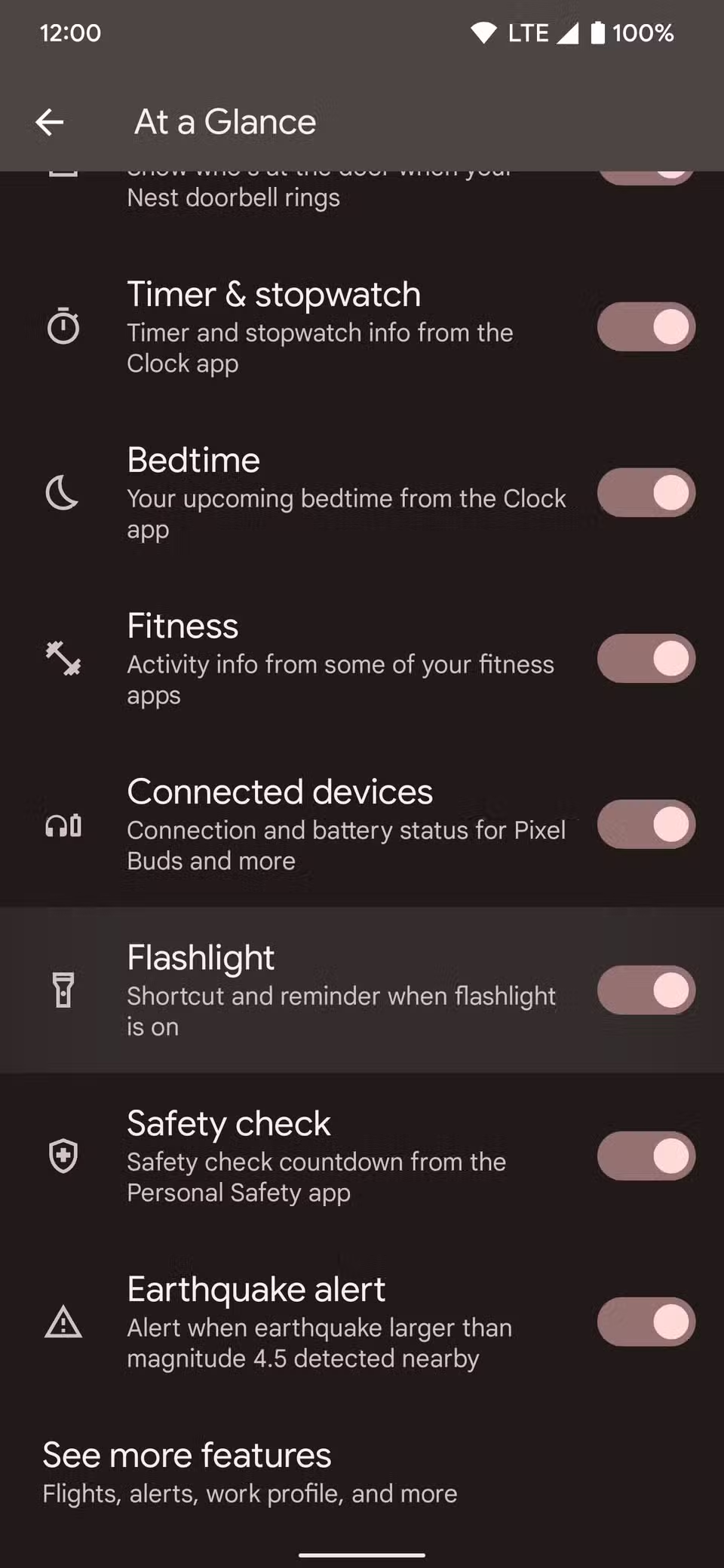
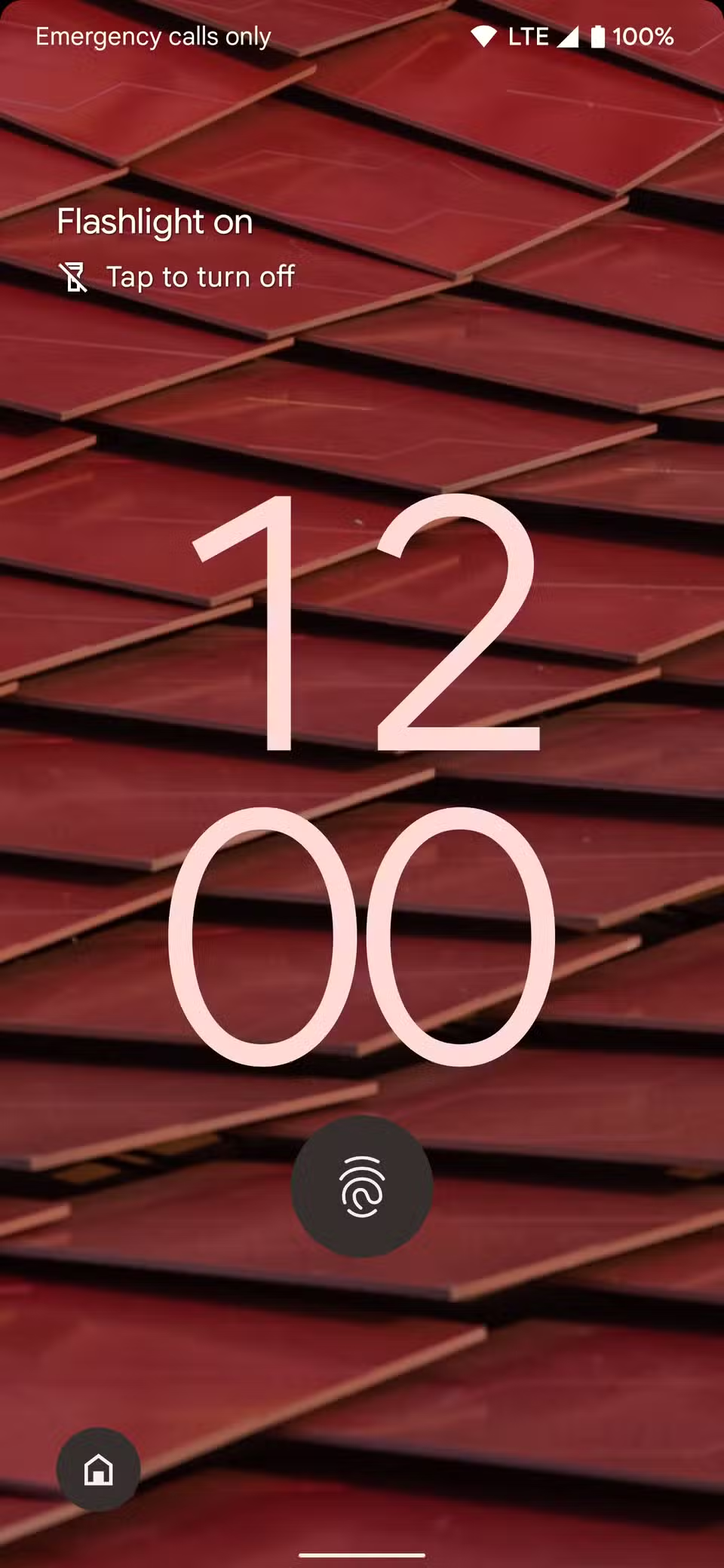
The next time your torchlight is on, your lock screen reminds you to turn it off. Tap the reminder to do so.
Use Quick Tap
Google introduced the Quick Tap feature with Android 12, allowing you to double tap the back of your phone to perform certain actions. However, the flashlight option was missing.
With Android 13 and later, you can double tap the back of the phone to use the flashlight.
Use the following steps to access the Quick Tap feature and set it to turn on the flashlight:
Quick Tap may not work properly on phones with rugged or thick cases. Cases interfere with the sensors’ ability to detect taps accurately.
Remove the case to use the feature as intended. Otherwise, replace the case with a lighter type.
- Open the Settings App.
- Go to System > Gestures > Quick Tap to start actions.
-
Tap the Use Quick Tap toggle to turn on the feature.
- Scroll down and tap Toggle flashlight.
-
Double tap the phone’s back to see the Quick Tap detected notification.
- Close Settings.
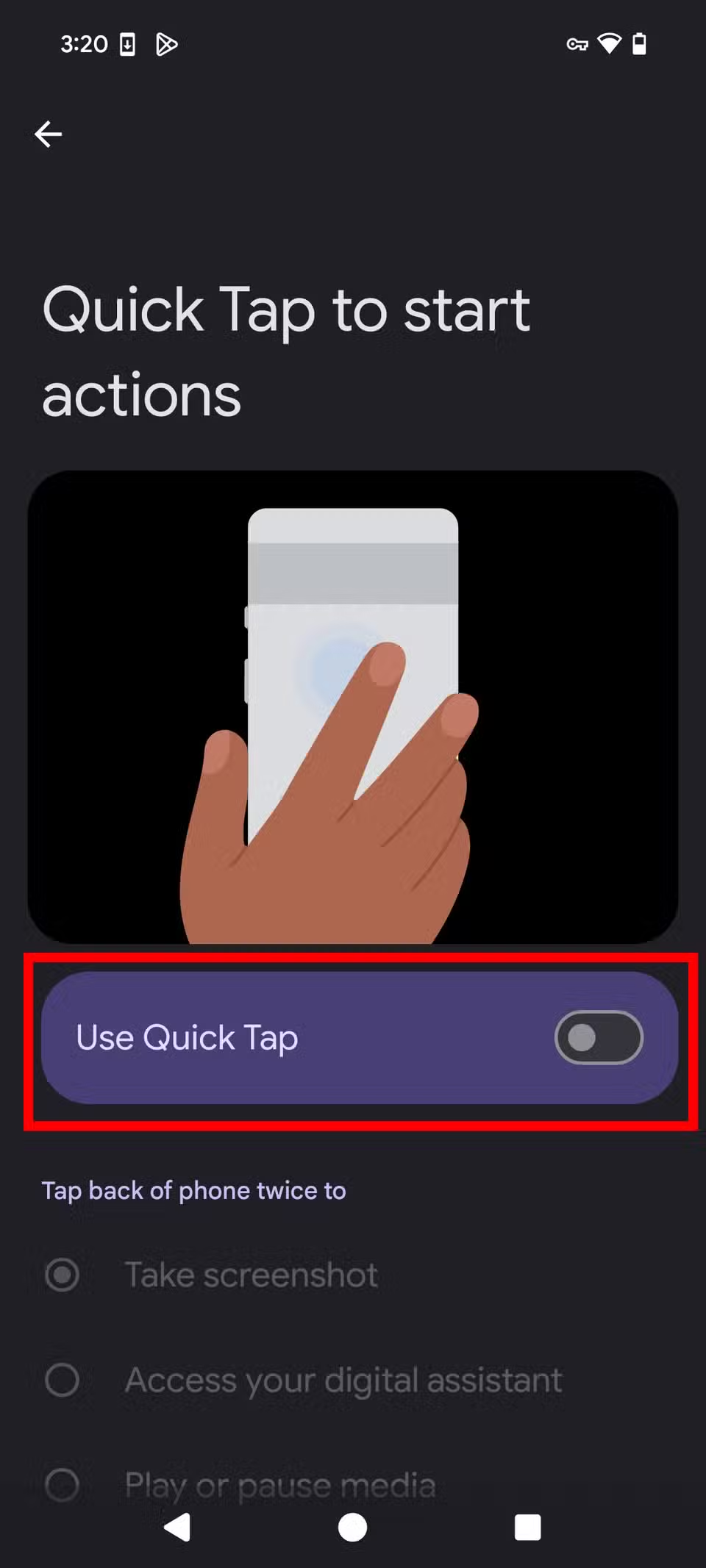

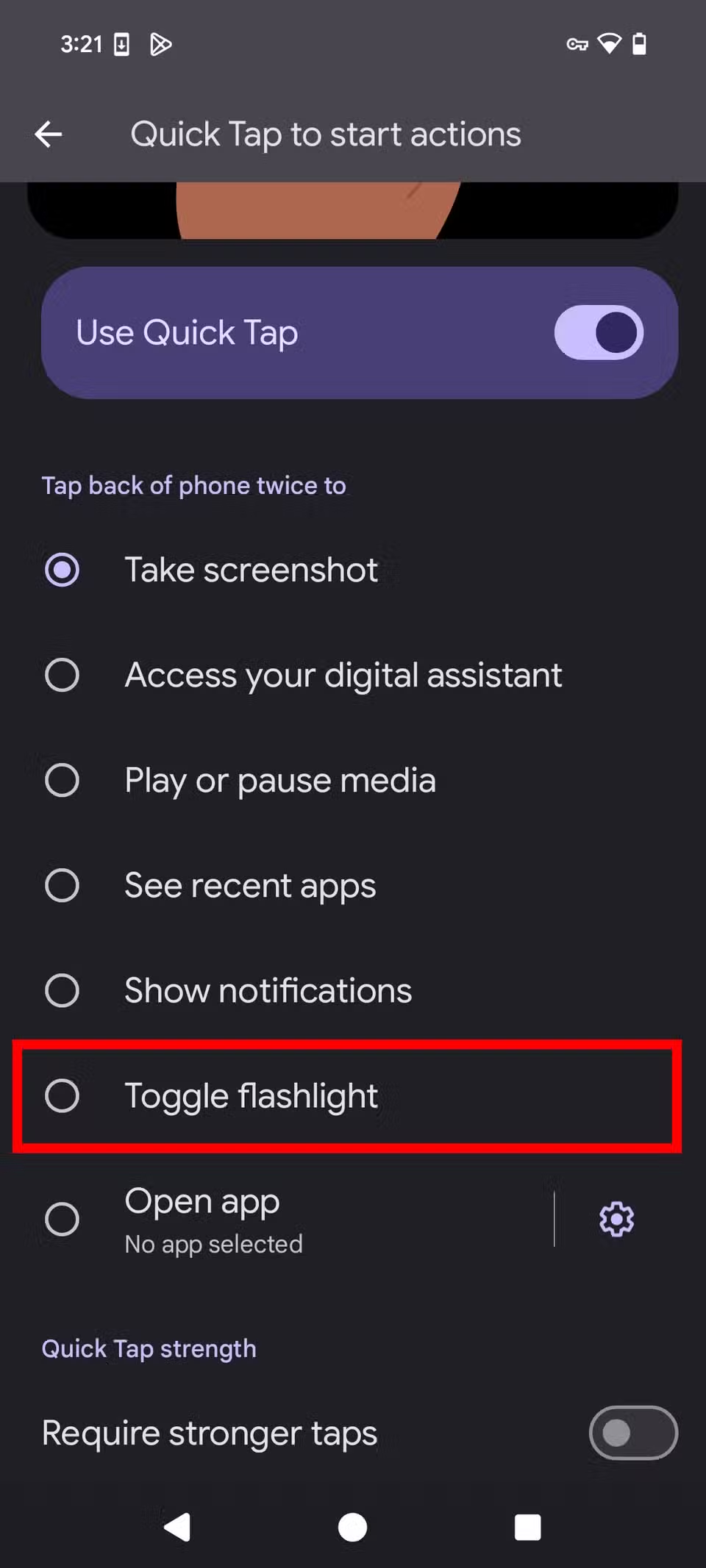

When you quickly tap the back of your Android phone twice, the flashlight turns on. Do it a second time to turn it off.
If you accidentally trigger the flashlight, turn on the Require stronger taps setting. It makes your phone’s sensors less sensitive, requiring a firmer tap to activate Quick Tap and reducing accidental triggers.
Motorola phones have a “chop-chop” gesture, and some OnePlus phones have a “draw V” gesture that allows you to turn the flashlight on or off, similar to Google’s Quick Tap feature on Pixel phones.
How to use Android’s Quick Tap feature
There’s a lot you can do by tapping the back of your Pixel phone
Use Google Gemini to turn on your flashlight
Google Gemini (older devices might still be using Google Assistant) is your hands-free companion for getting things done quickly. Instead of fumbling for the flashlight on your phone, say the word, and Gemini will illuminate the room.
It’s also useful if you have a disability that makes it hard to use your phone correctly.
Here’s how to use it:
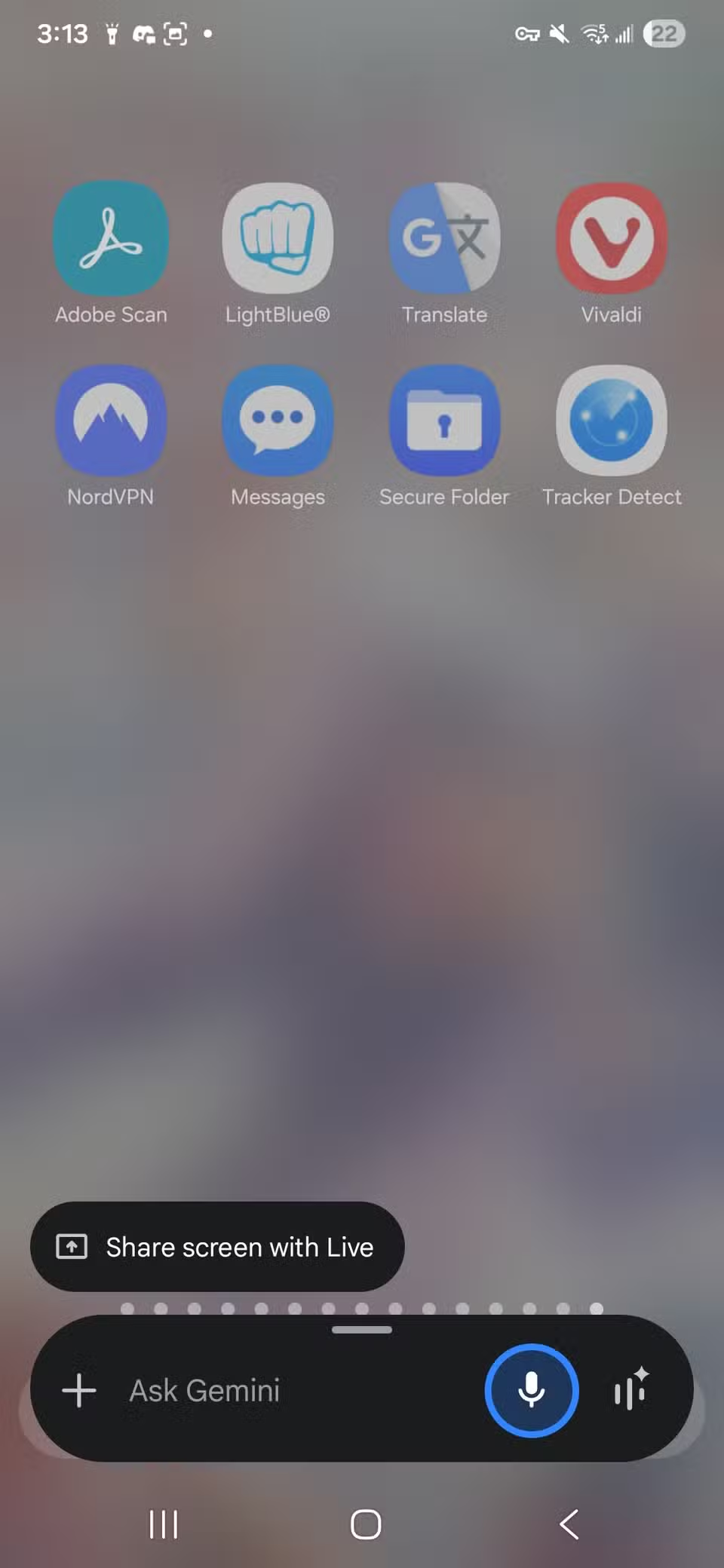
- Launch Google Gemini using your favorite method. Swipe from the corner of your screen, hold the Home button in the navigation bar, say phrases like “Hey Google,” or double tap the back of your Android smartphone.
-
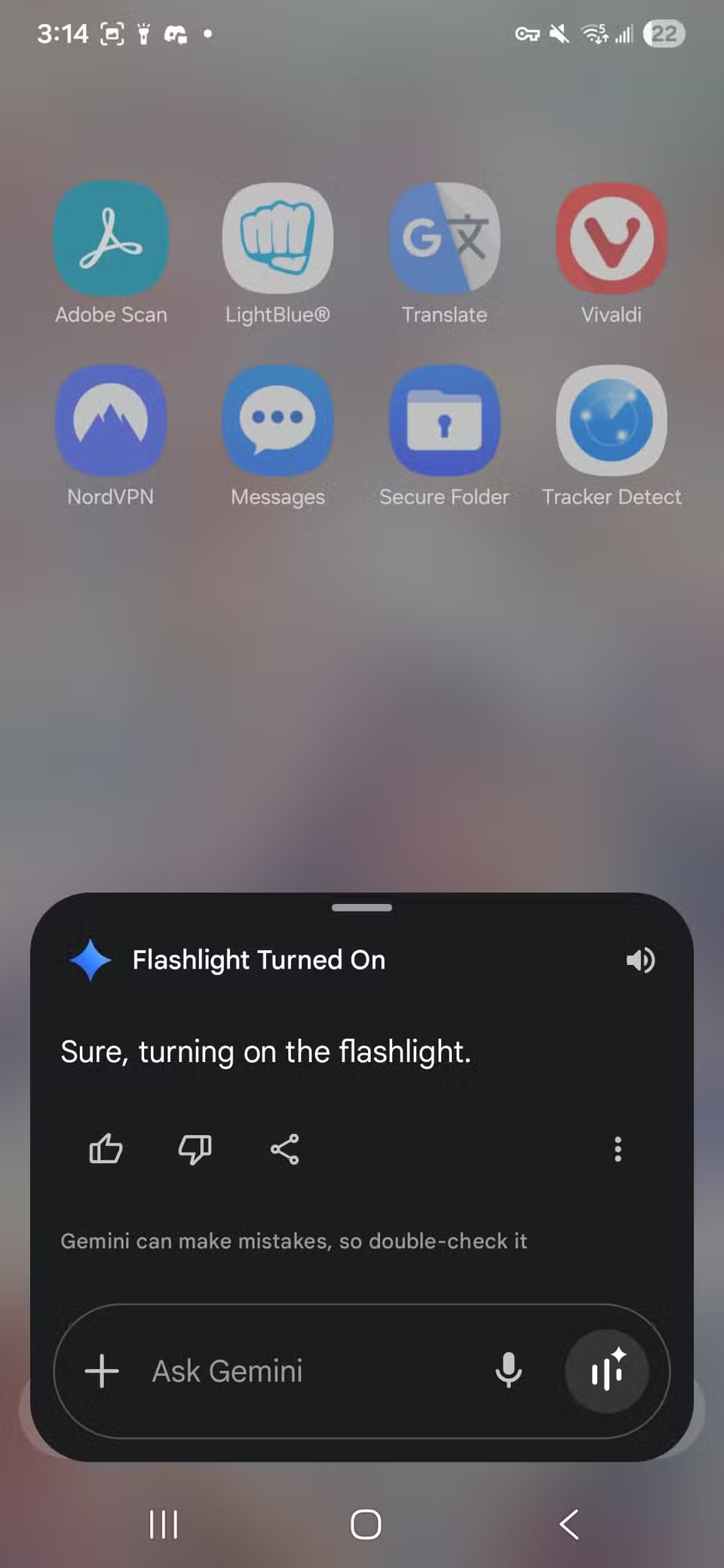
When Gemini pops up, say or type, “Turn on the flashlight.” This command has multiple variations. Saying “Flashlight on” or “Flashlight” also works.
- The flashlight comes on with a Flashlight popup. Tap the button to turn it off when you’re finished.
- You can also say or type “Turn off flashlight,” “Flashlight off,” or “Off.”
Create a custom Action Block flashlight button
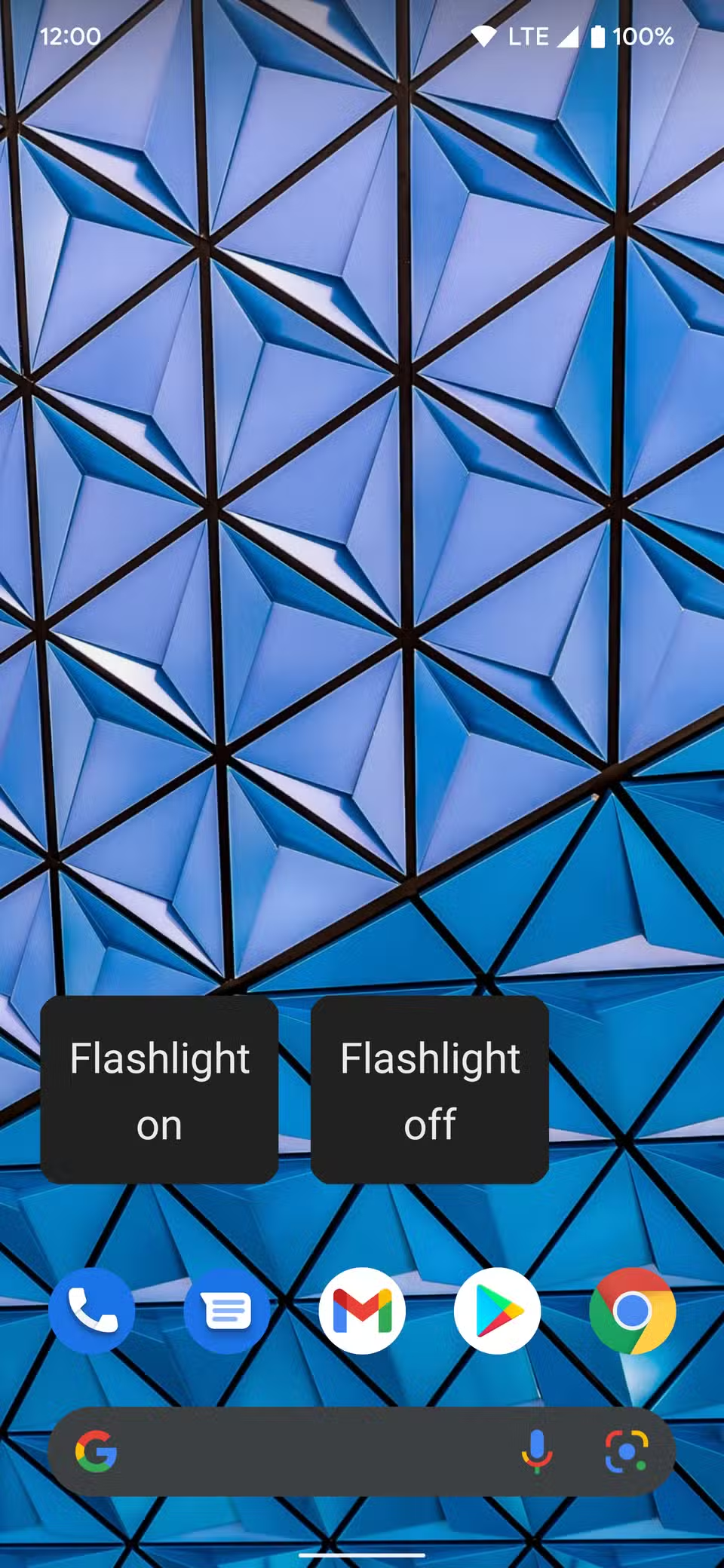
This method relies on using the previous Google Assistant command. This time, you’ll create a personalized button to turn on your phone’s flashlight with a single tap, skipping voice commands and manual navigation through settings.
You’ll make a custom Block action using Google’s Action Blocks accessibility app, which makes Google Assistant voice commands accessible from home screen buttons.
Here’s how to use the app:
- Download and install Action Blocks from the Google Play Store.
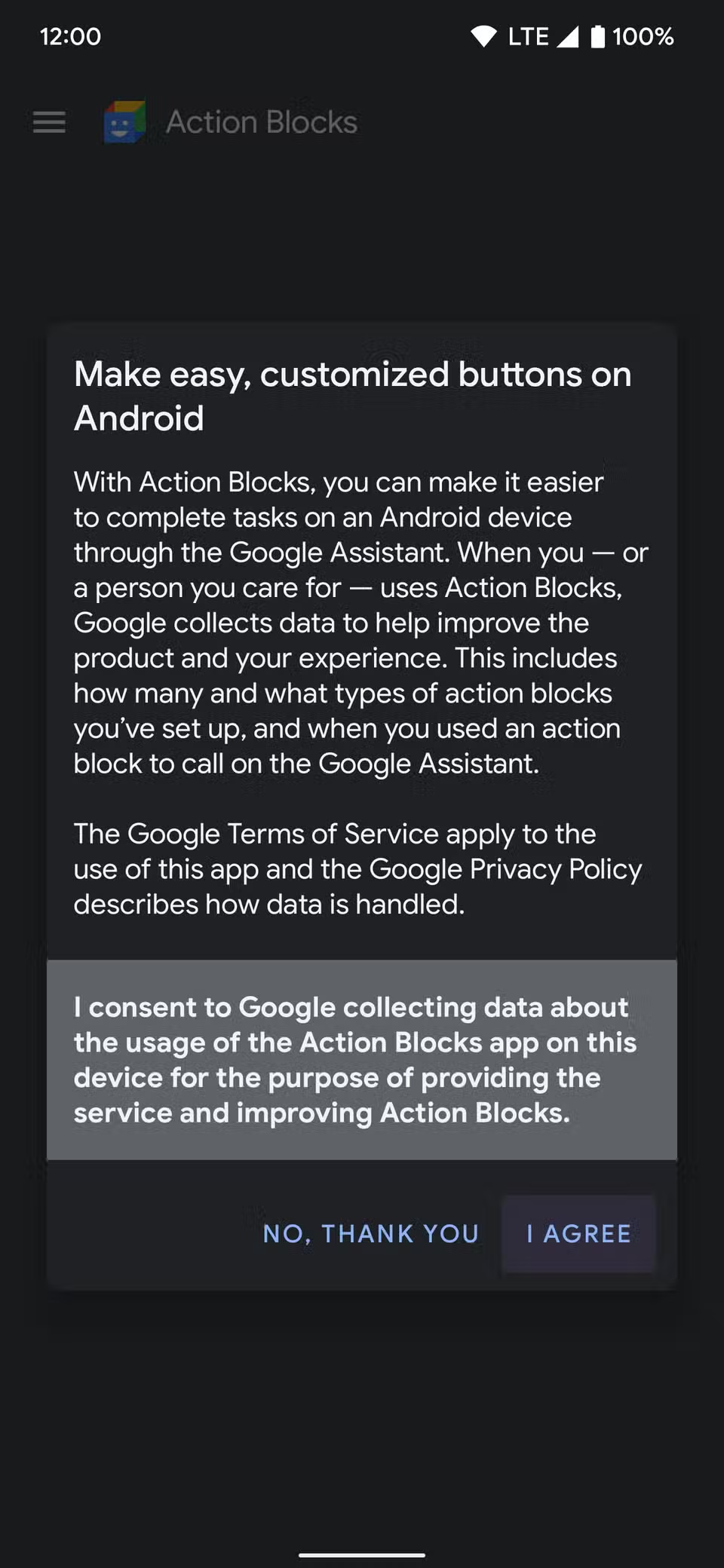
- Open Action Blocks and select I Agree.
-
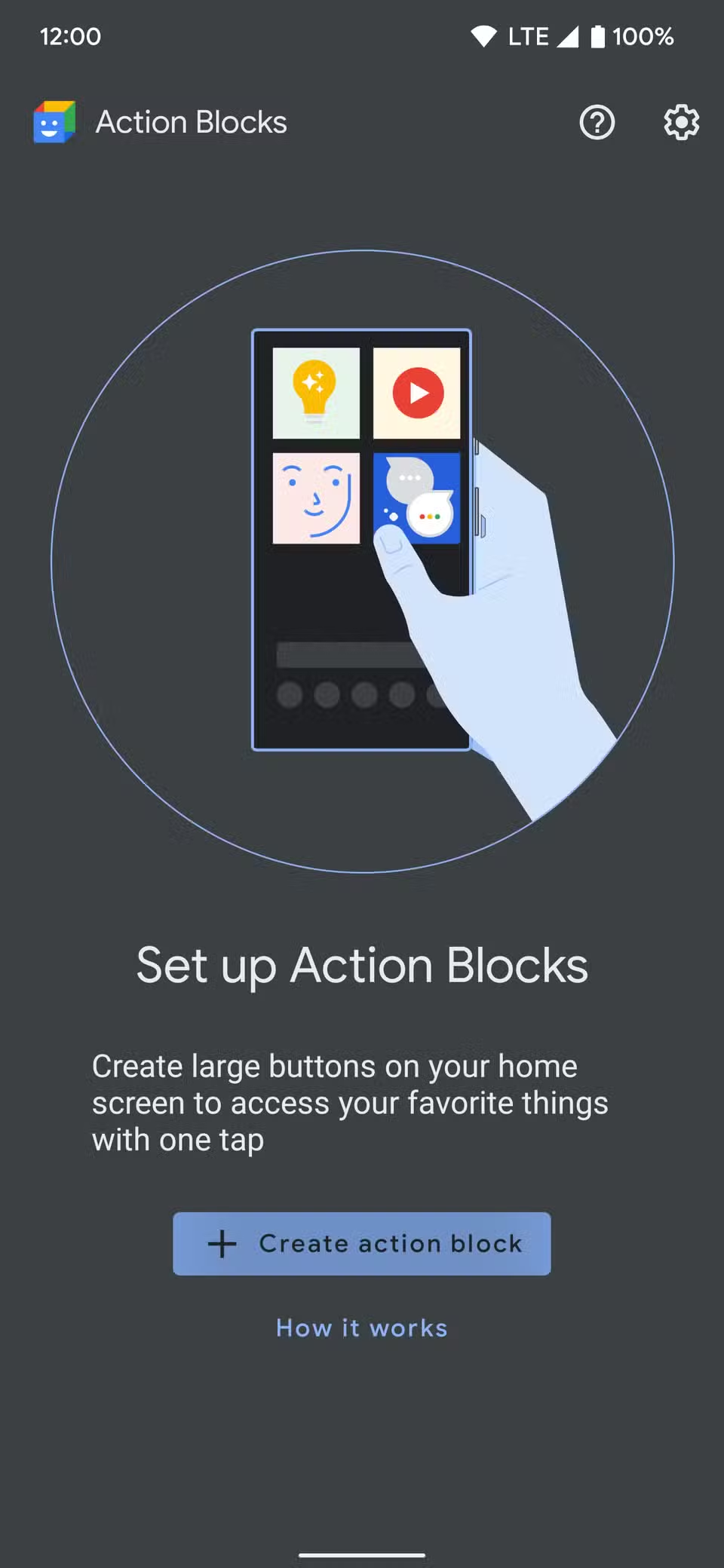
Tap the Create action block button.
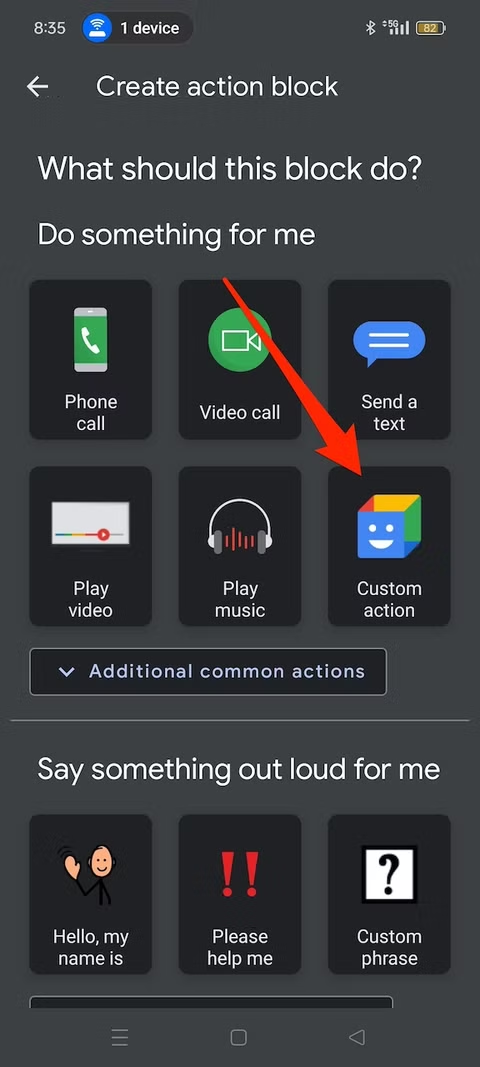
- Under Do something for me, tap Custom action.
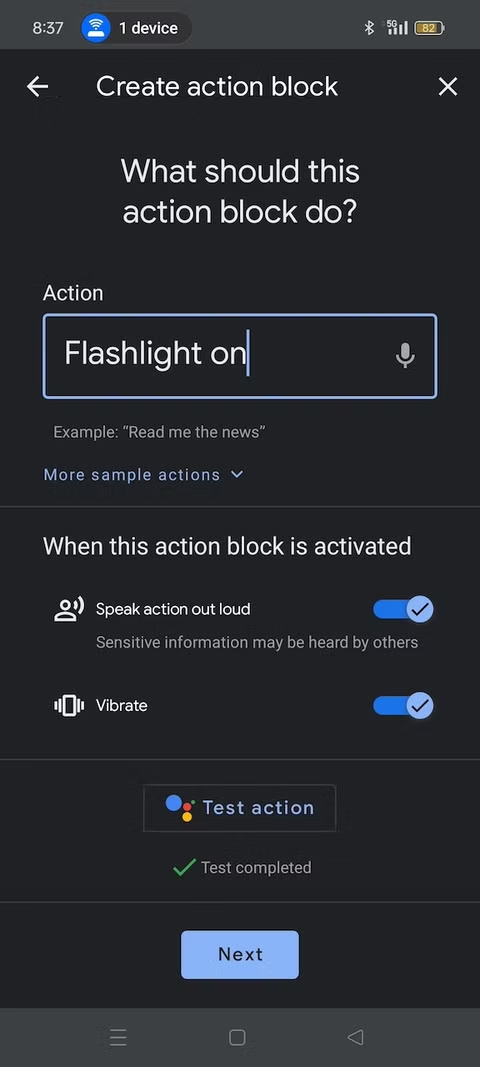
- In the Action text box, type flashlight on.
-
Tap Test action to see if it works.

- Google asks if the action worked as expected. Tap Yes to continue.
- Deactivate the Speak action out loud and Vibrate options if you don’t need them.
- When you’re done, tap Next.
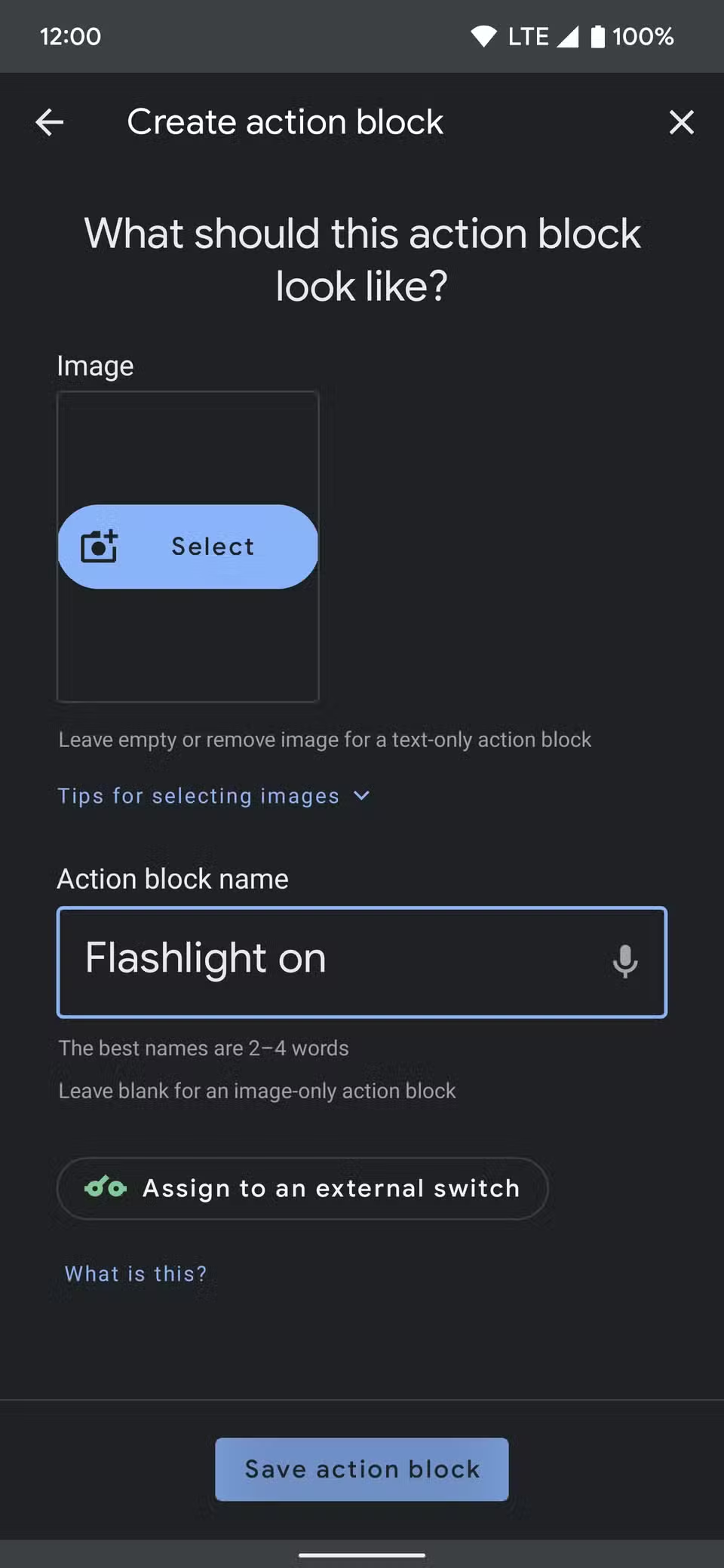
- Name your action block and give it an image for better identification. Then, tap Save action block.
-
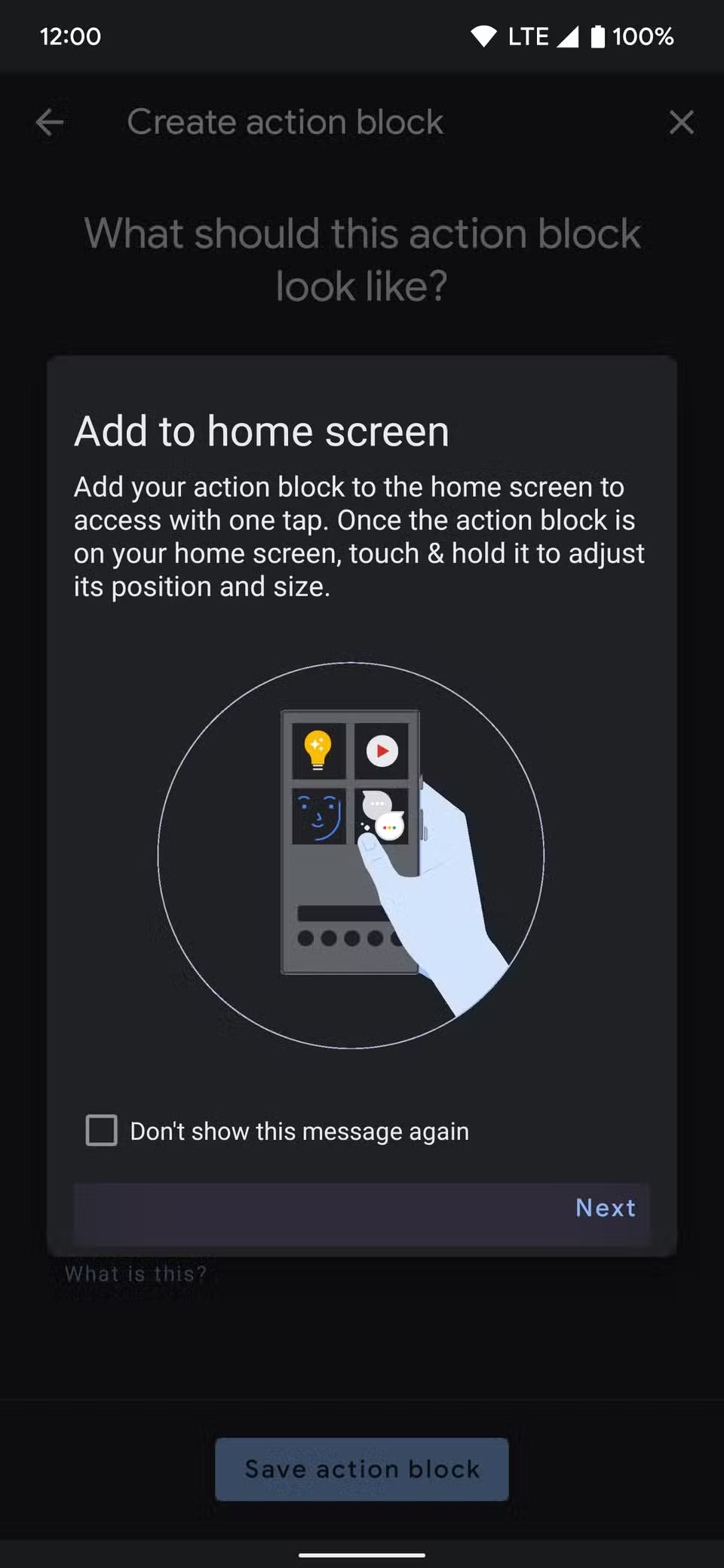
Tap Next on the Add to home screen message.
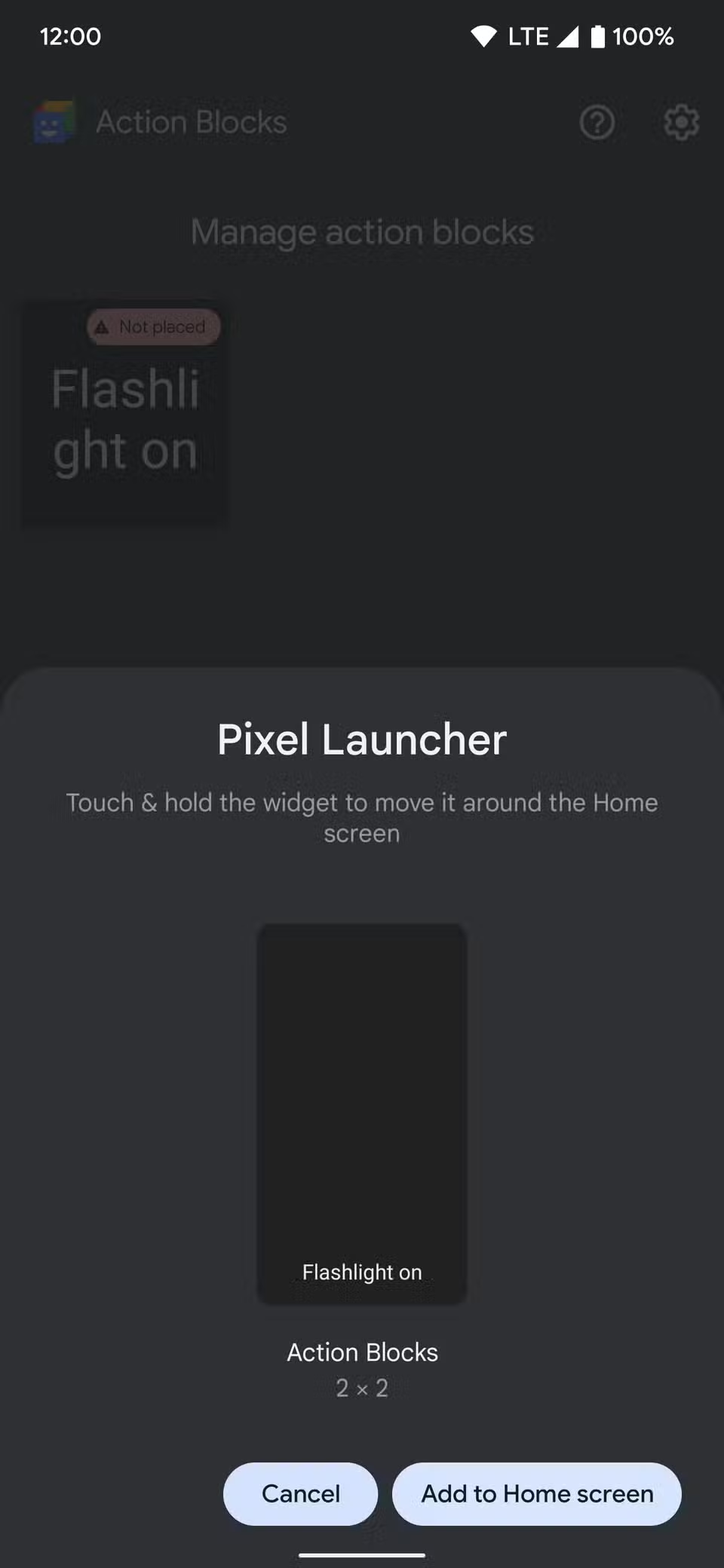
- Tap the Add to Home screen button.
-
Tap Go to home screen.
- You’ll see the flashlight button you created. Tap the shortcut to turn the flashlight on, then tap the button on the Google Assistant screen to turn it off.
-
Long press the button to adjust its size and move it around on your home screen as needed.
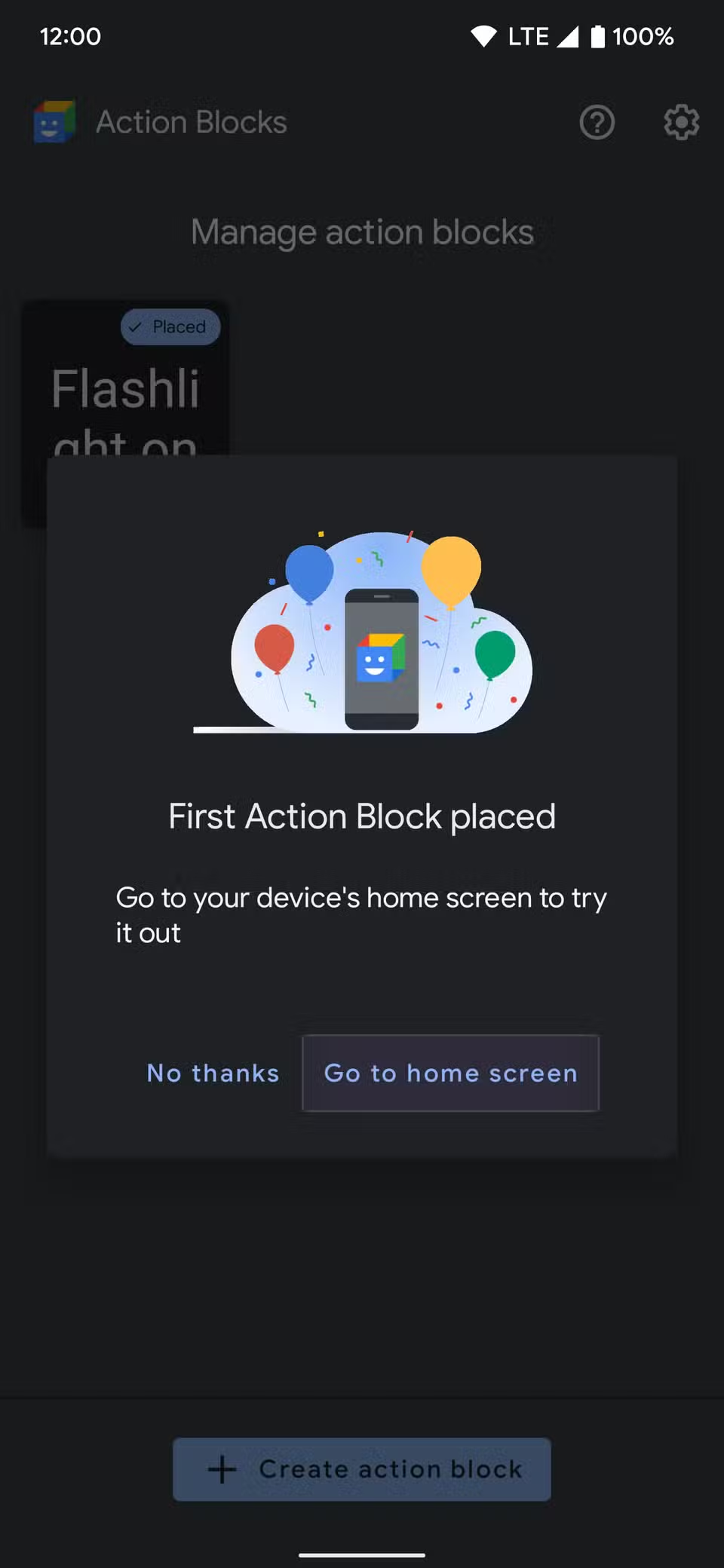
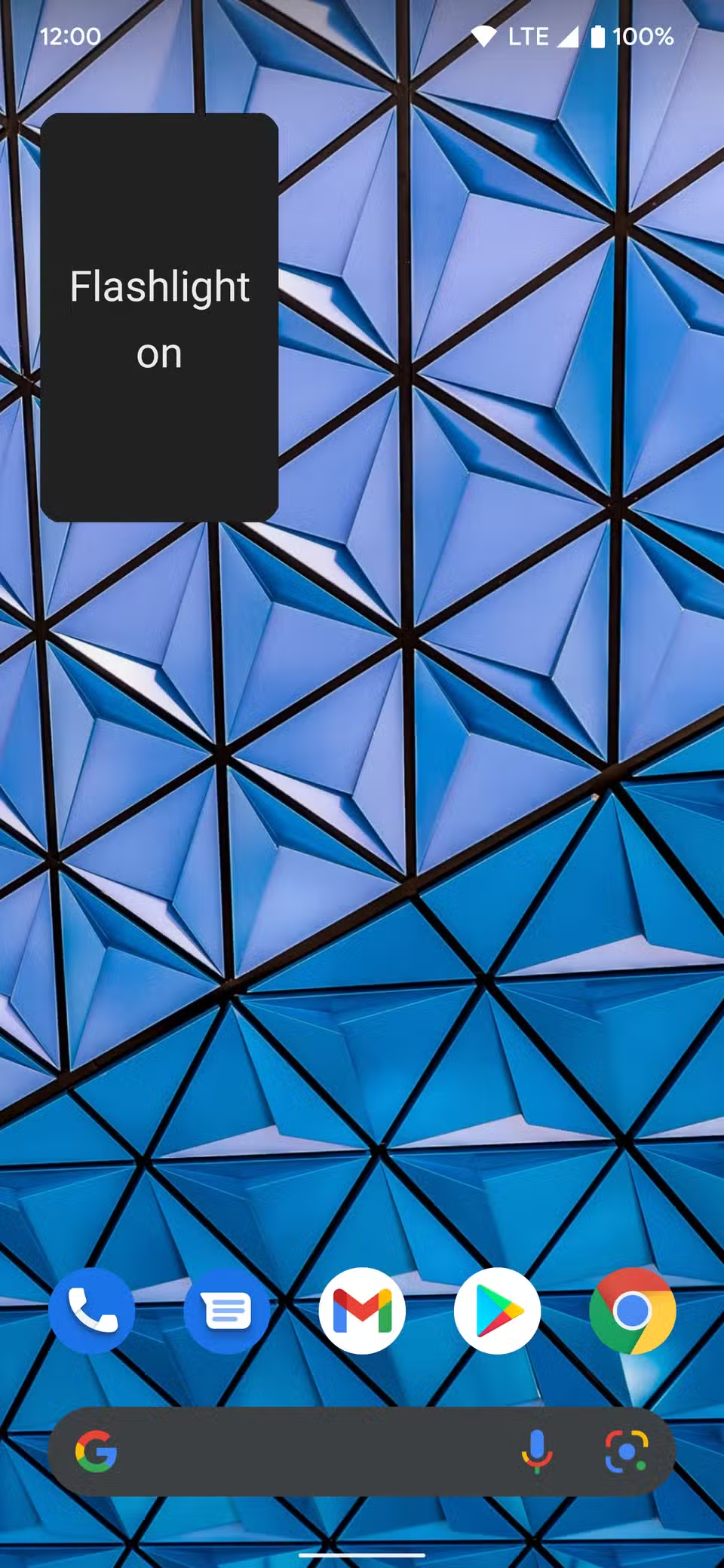
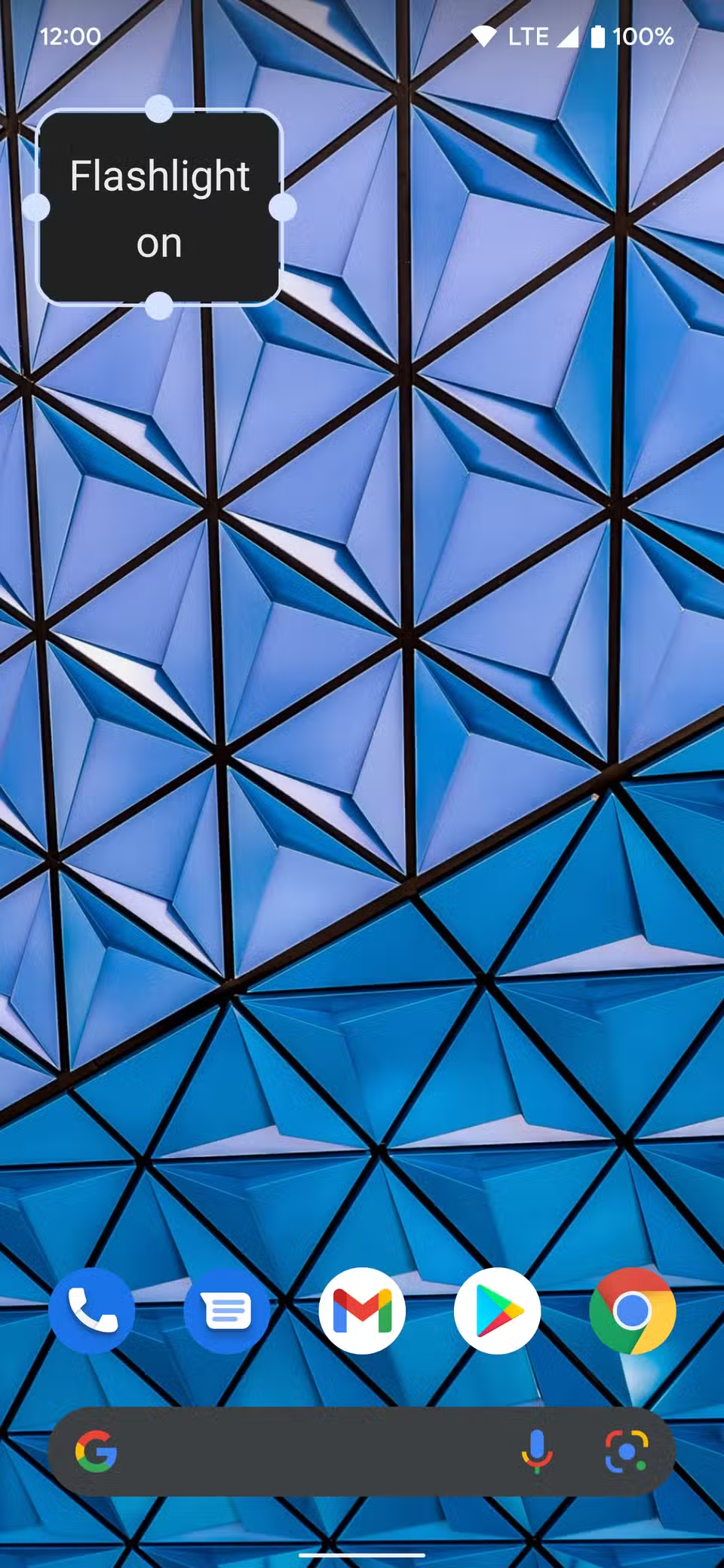
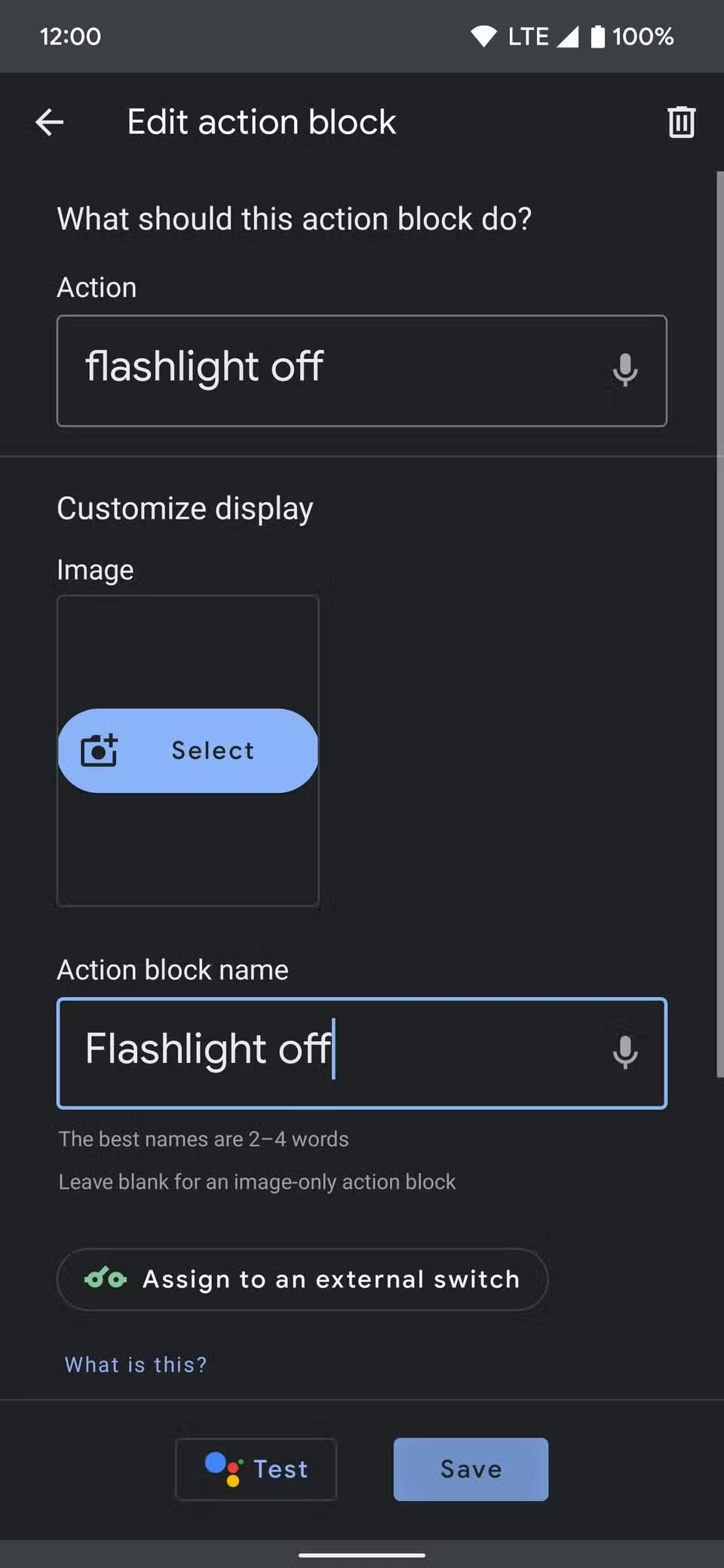
Consider making a second action button to turn off the flashlight when you press it. Two buttons allow you to turn the flashlight on and off without manually bringing up Google Assistant.
To change the buttons, open the Action Blocks app, tap a block, and select Edit.
Shake your phone to turn on the flashlight
The built-in flashlight feature on your phone is enough to help you find your way in the dark. Still, third-party apps add extra features you may find interesting.
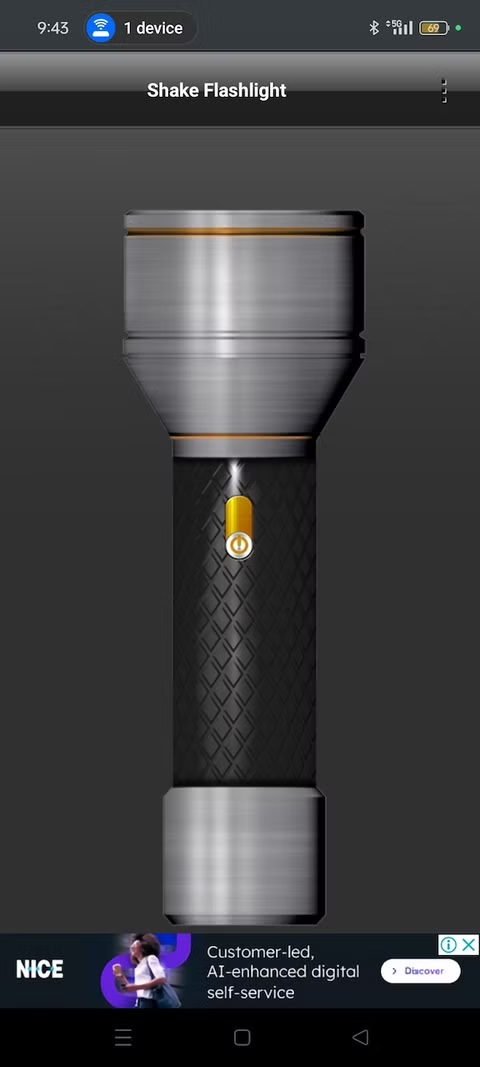
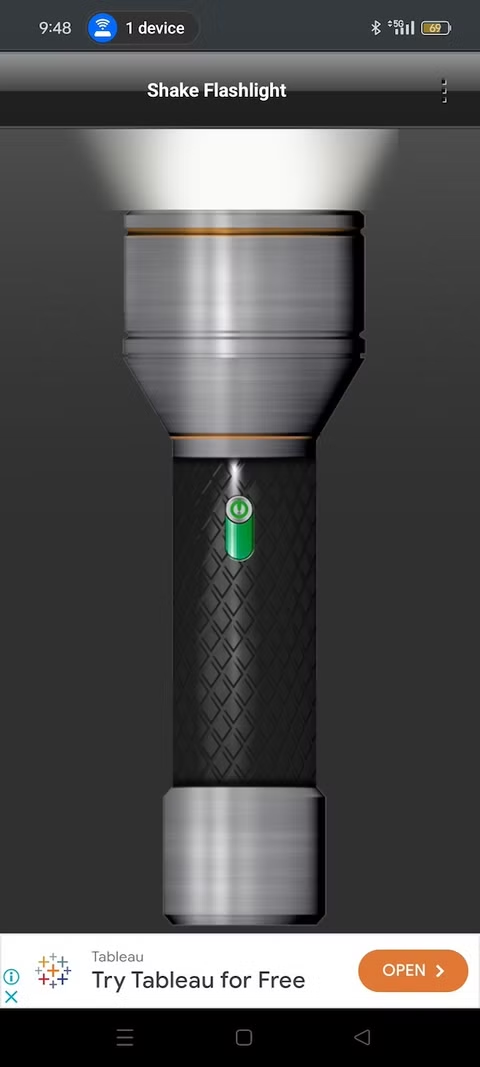
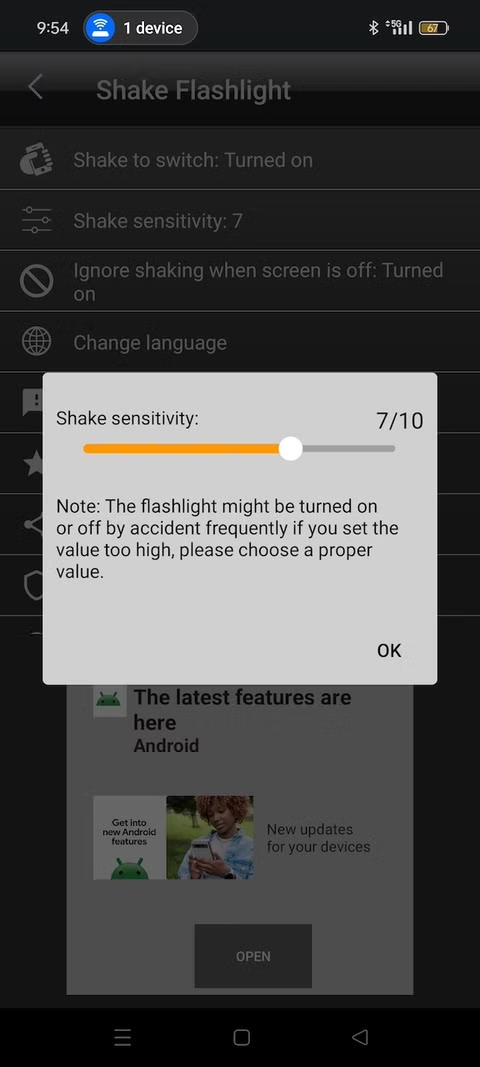
Shake Flashlight makes you jiggle your phone to turn on the flashlight, which cuts out manual processes.
With over one million downloads, it’s been a popular option since 2015 among Android flashlight apps.
Here’s how to use it:
- Download the Shake Flashlight app from the Google Play Store.
- Open the app and tap the power button on the flashlight.
- Allow the camera permission for Shake Flashlight to access the light on the back of your phone. Otherwise, it doesn’t work as the light and camera are tied together.
-
After granting permission, the flashlight comes on.
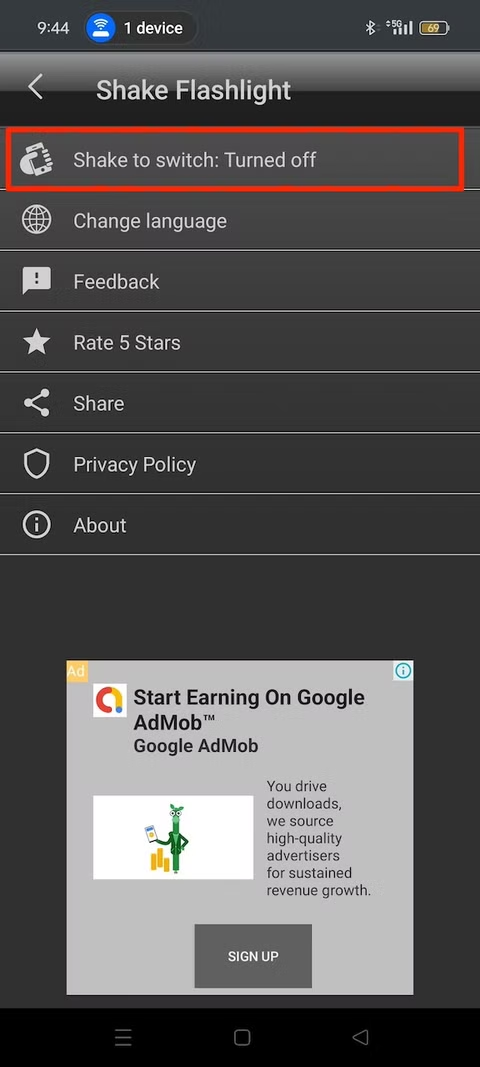
- To activate Shake to switch, tap the overflow menu (the three-dot icon) in the upper-right corner.
- Select the Shake to switch option and allow notifications permission.
-
If the shaking motion is inconsistent, tap Shake sensitivity and adjust it to your preferred number.
Light the way in different ways with Android
Your phone’s flashlight is useful for navigating in the dark, and now you know all the ways to use it. Increase its intensity if it isn’t bright enough.
LED flashlights consume little power, so leaving the light on doesn’t significantly drain the battery. However, your phone may still overheat. So, only use the torch for extended periods when necessary.
Via: androidpolice.com