

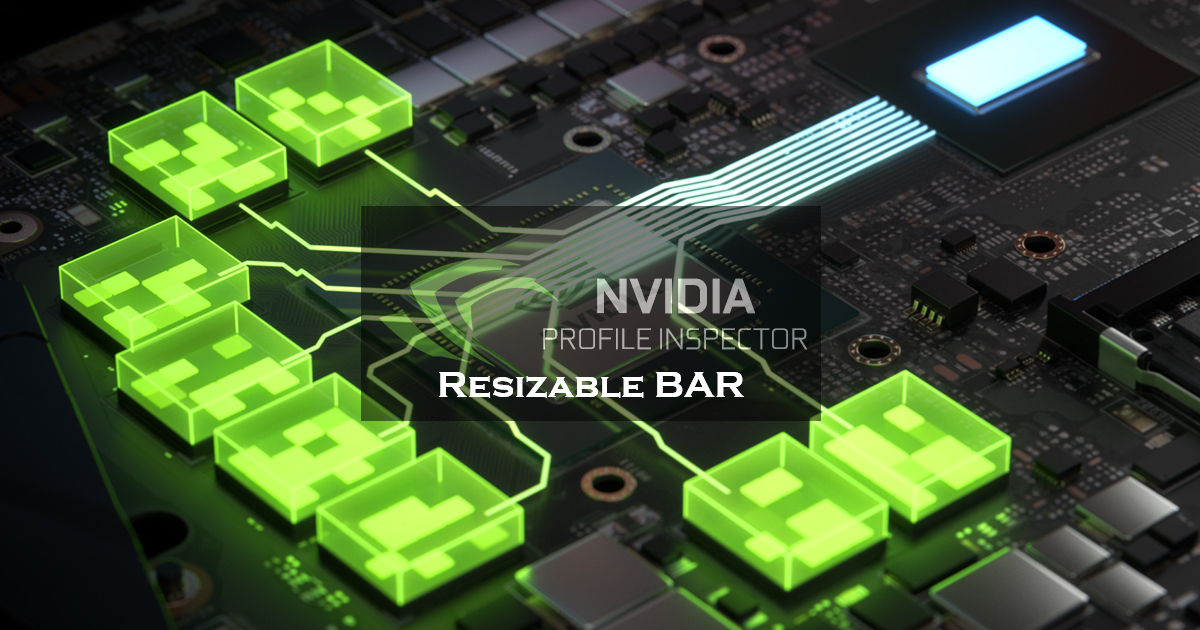
Resizable BAR (Base Address Register) (or ReBAR for short) is a modern PCI Express feature that lets your CPU access the full video memory (VRAM) of your GPU directly, removing the old 256 MB limitation and potentially reducing bottlenecks in data transfer between the CPU and GPU in games. When supported by your hardware (CPU, motherboard and GPU) and properly enabled, ReBAR can improve performance in certain titles, making gameplay feel more responsive and consistent.
Each of the three major GPU vendors supports this feature, but the implementations differ. AMD introduced it first as Smart Access Memory (SAM) with their RX 6000 Series GPUs, and its Adrenalin graphics driver interface has an on/off global toggle for it on compatible hardware when BIOS support is present. NVIDIA added ReBAR support starting with its RTX 30 Series GPUs with a post-release VBIOS update, but their drivers only enable it for specific games that they’ve validated. Intel‘s Arc GPUs not only support ReBAR, but actually acquire it to achieve their full performance. Across all three GPU vendors, the underlying mechanism uses the same standardized PCIe feature, but the implementation varies by GPU architectures and drivers.
Since NVIDIA is the only GPU vendor that enables/disables ReBAR on a per game basis, it is possible to use advanced third-party tools like NVIDIA Profile Inspector to force ReBAR for officially unsupported games, potentially improving their performance but also risking instability or performance regressions if the feature isn’t beneficial for them.
Therefore, this guide focuses exclusively on NVIDIA GPUs starting with Ampere (RTX 30 Series), showing how to enable Resizable BAR via NVIDIA Profile Inspector and how to measure and interpret its performance impact and potential drawbacks on your system.
What You Need Before You Begin
Before attempting to enable ReBAR via NVIDIA Profile Inspector, you must first ensure that your entire system supports it at the hardware, firmware, and software levels. Otherwise, it simply won’t work, no matter what tweaks you make in the driver. At minimum, you need a compatible NVIDIA GPU (RTX 30 Series or newer) with a VBIOS that supports ReBAR, and a CPU and motherboard (Intel Core 10th Gen/AMD Ryzen 3000 Series or newer) that both support the feature; even if the hardware itself supports ReBAR, the motherboard’s UEFI BIOS must explicitly expose ReBAR settings for you to enable it.
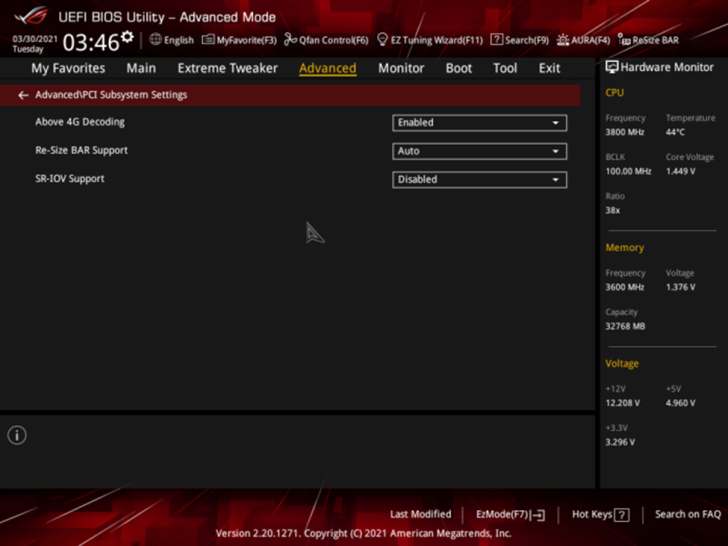
In your motherboard’s UEFI BIOS you’ll generally need to disable Compatibility Support Module (CSM) so the system boots in pure UEFI mode, enable “Above 4G Decoding”, and then enable the “Resizable BAR” or “Re-Size BAR Support” option; the second option can sometimes only appear after Above 4G Decoding is turned on:
On the software side, make sure you’re running a modern up-to-date OS (Windows 10 or 11 are recommended for NVIDIA GPUs) installation in UEFI mode (GPT-formatted, not legacy BIOS/MBR) and that you have the latest UEFI BIOS and drivers installed on your system.
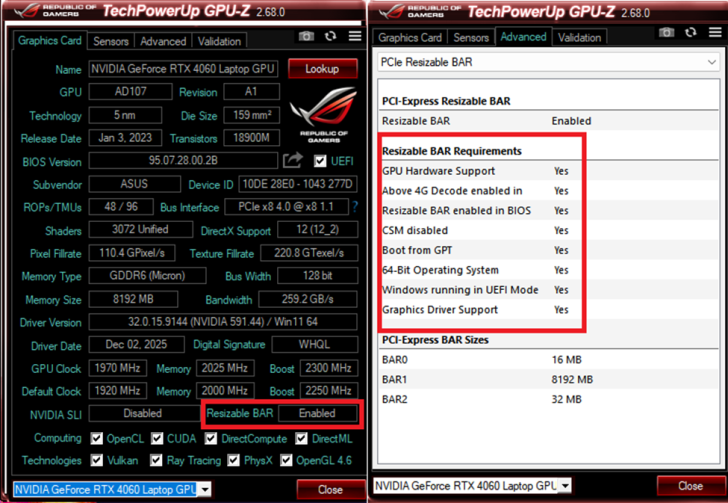
TechpowerUp GPU-Z can be used to determine whether ReBAR is actually enabled on your system, and it even has a detailed list of pre-requisite requirements that have to be met in order for it to be enabled
Once all of these pieces are in place you’ll be able to use NVIDIA Profile Inspector to force the feature on in the driver for officially unsupported titles, and proceed with benchmarking and tuning.
Step-by-Step Tutorial: Enabling ReBAR in NVIDIA Profile Inspector
- Downloading NVIDIA Profile Inspector
NVIDIA Profile Inspector is a free and portable utility that’s used to view and edit hidden NVIDIA graphics driver settings, including the all-important ReBAR flags. You can download it in ZIP format from the “Assets” section of its creator’s (Orbmu2k) GitHub repo:
https://github.com/Orbmu2k/nvidiaProfileInspector/releases/tag/2.4.0.27

After downloading the Inspector archive, extract it somewhere convenient and run “nvidiaProfileInspector.exe” as admin. It might prompt you to install .NET Framework 4.0 or higher if you don’t already have it installed, as it’s a required dependency for it. If that’s the case, then you can grab it (and later install it) from here:
https://dotnet.microsoft.com/en-us/download/dotnet-framework
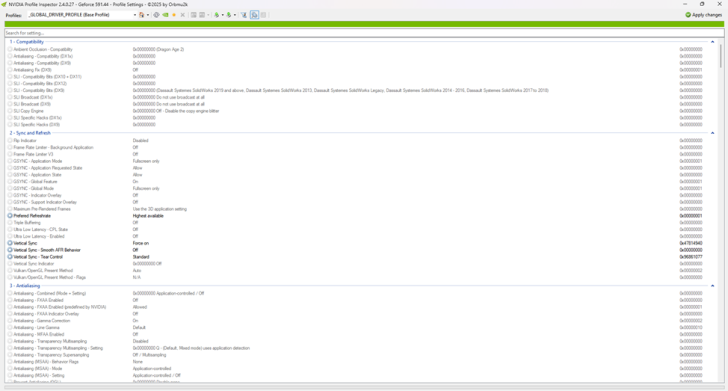
After running Inspector, you should be greeted with this interface:
- Navigating the Inspector user interface
The interface contains a toolbar at the top, which includes a “Profiles” dropdown list in the left that shows the current driver profile. The default opened profile will be “_GLOBAL_DRIVER_PROFILE (Base Profile)” which is the profile that contains driver settings that apply globally to all of your games. The list also contains driver profiles for all games that NVIDIA has included in your installed driver. I strongly recommend that you don’t touch these settings if you don’t know exactly what you’re doing, not to mention that I also don’t recommend enabling ReBAR globally, for reasons we’ll explore later in this guide.
- Selecting a game and enabling ReBAR for it
Find the game that you want to enable driver side ReBAR for by typing its name in the Profiles dropdown list, which actually also doubles as a search bar. If your game isn’t in the list, then you may need to create a profile for it (we’ll cover how to do that later).
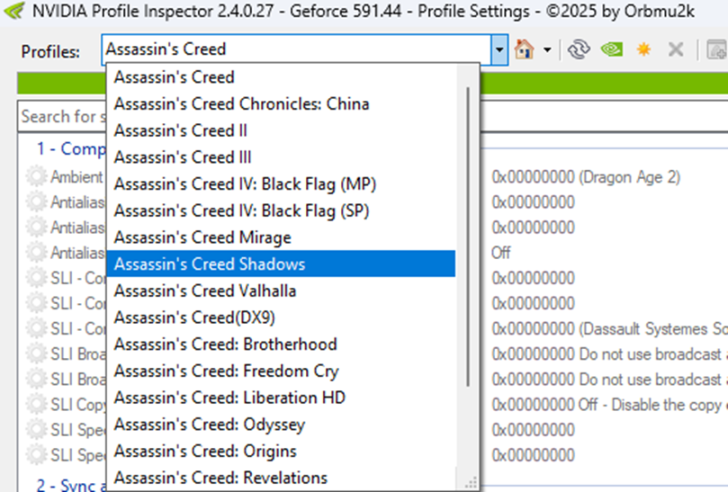
After selecting your game (in this case for us it’s Assassin’s Creed Shadows), type “ReBAR” in the other search bar that’s immediately under the green stripe that’s under the main toolbar of the program, then set the “rBAR – Enable” flag to “Enabled” by selecting it from the dropdown list of values corresponding to it, and finally click on “Apply changes” button in the top right, then close the program. That’s it, you’ve now enabled driver side ReBAR for your game! Now all that would be left is to validate any potential performance improvements you get by enabling it for your game, and we shall see how to do that later in this guide.

Now, you may have noticed some extra ReBAR related driver flags in the Inspector interface. These flags are used by NVIDIA to further tweak how ReBAR behaves on certain systems and with certain games. There are also a couple of poorly documented and untested ReBAR flags in the “Extra” section of Inspector. We’ll just ignore those for now.
Here’s a short explainer of the other known three ReBAR flags:
- Intel CPU exclusion: Avoids enabling ReBAR on some problematic Intel CPUs for some games. Leave alone unless stability issues occur on your Intel based platform.
- Options: A helper flag to fully enable ReBAR in some games.
- Size Limit: Sets how much VRAM the CPU can access in one chunk. Higher hex values mean larger VRAM windows, and may improve performance and even reduce ReBAR induced stuttering in some games like FINAL FANTASY VII REBIRTH.
You can experiment with these settings as you wish and see if they offer an even bigger performance boost (or sometimes even more stability), should you wish to do so.
- Optional (but recommended) step: Saving your custom profile:
Driver updates can reset the internal driver profile database, wiping any custom tweaks you may have applied with NVIDIA Profile Inspector. To avoid re-tweaking your game profiles every time, you can save them by clicking on the floppy disk icon with the upwards pointing arrow, then clicking on “Export current profile only”, then finally saving it as a “.nip” file in a folder of your choosing:
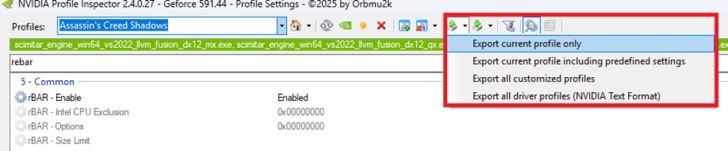
Then, should you want to re-import your previously saved profile with Inspector, just click on the floppy disk icon with the downwards pointing arrow to select and import your profile back into the NVIDIA graphics driver database:

- If you don’t see the ReBAR settings, try updating to the latest NVIDIA Profile Inspector build, as older legacy builds sometimes don’t show newer flags.
- Inspector reads the internal NVIDIA driver database and driver updates can change what flags are available, which is why saving custom profiles can be so useful.
- If a game doesn’t appear in the dropdown list, you can create a custom game profile by first clicking on the Sun icon:

- Then entering a profile name in the dialogue box that appears in the middle of the screen:
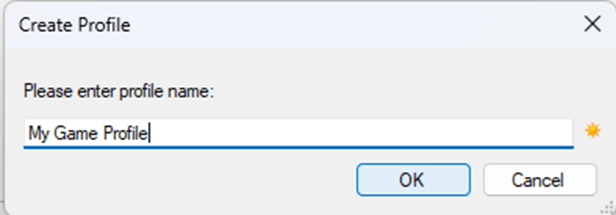
- Then adding your game’s executable to the profile by clicking on the “Add application to current profile.” button:

- Then clicking on “Browse…” and select your game’s exe:
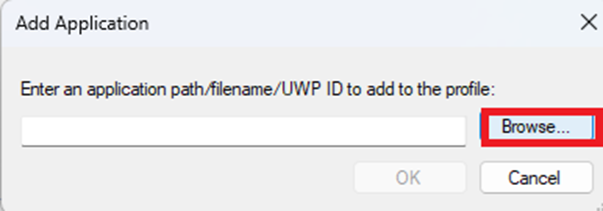
- Then making sure that your game’s executable was actually added by ensuring that it’s in the green stripe below the toolbar:

- And finally, you can commit the changes by clicking on the “Apply changes” button in the top right, then close Inspector to get back to testing your newly tweaked game.
ReBAR OFF vs ON Game Benchmarks
To give readers a real sense of how forcing Resizable BAR on via NVIDIA Profile Inspector impacts actual gaming performance, I ran benchmarks using the popular CapFrameX performance capturing software, comparing ReBAR OFF vs ON across three modern titles using meaningful performance metrics: Average FPS, 1% low average FPS, and 0.1% low average FPS. These metrics not only tell whether framerates go up, but whether the experience feels smoother and more consistent as well.
I’ve performed the benchmarks on both my desktop and laptop PCs with the following relevant specs:
| Hardware/software | Desktop PC | Laptop PC |
| CPU | Intel Core i7-14700K | Intel Core i7-12700H |
| RAM | 32 GB DDR5 | 16 GB DDR4 |
| GPU | NVIDIA GeForce RTX 4090 | NVIDIA GeForce RTX 4060 Laptop GPU |
| Storage | 2 TB NVMe SSD PCIe 3.0 4X | 1 TB NVMe SSD PCIe 4.0 4X |
| Operating system | Windows 11 25H2 | Windows 11 25H2 |
The UEFI BIOS, operating system, system drivers and the games themselves were fully updated before performing the benchmarks.
Finally, I’ve made sure that the benchmarks were fully GPU limited (as ReBAR mainly impacts GPU performance) by running them with optimized graphics settings for the target hardware specs. The benchmark results were also taken from the average of three runs in order to minimize the impact of run-to-run variance as much as possible.
Dying Light: The Beast – Desktop PC Benchmarks

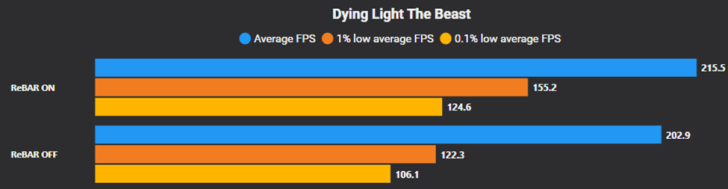
In Dying Light: The Beast, enabling Resizable BAR delivered measurable gains across all three performance metrics. Average FPS/1% low average FPS/0.1% low average FPS improved by 6%/27%/17% respectively, indicating not just higher framerates but fewer dips and hiccups, consistent with how ReBAR usually tends to benefit games with engines that transfer considerable data between the CPU and GPU.
Assassin’s Creed Shadows – Desktop PC Benchmarks

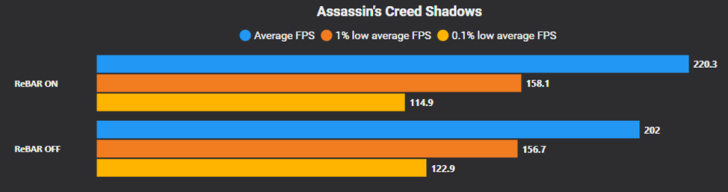
Assassin’s Creed Shadows saw a 9% gain in average FPS with ReBAR enabled, though 1% low average FPS stagnated and there was actually a 6% hit to 0.1% low average FPS, indicating that ReBAR doesn’t always improve all performance metrics in the same fashion.
Marvel’s Spider-Man 2 – Desktop PC and Laptop PC Benchmarks

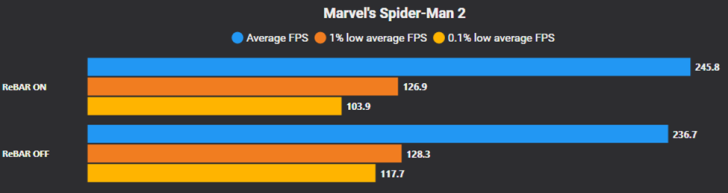
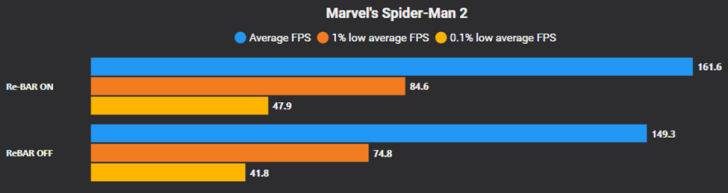
For Marvel’s Spider-Man 2, I benchmarked both my desktop and laptop PCs to highlight how ReBAR behavior can vary with system specs. On my desktop PC, enabling ReBAR showed modest and somewhat mixed improvements: average FPS nudged up by 4%, though 1% low average FPS stagnated and 0.1% low average FPS dropped by a considerable 12%. However, on my laptop PC, the gains were much bigger: Average FPS/1% low average FPS/0.1% low average FPS went up by 8%/13%/15% respectively!
And if you’re still somewhat unsatisfied with these performance gains by driver side ReBAR enablement, then why not add a GPU overclock on top of it and improve your performance even further. Just make sure that your overclock is fully stable and that you’re wary of the drawbacks of overclocking your PC components!
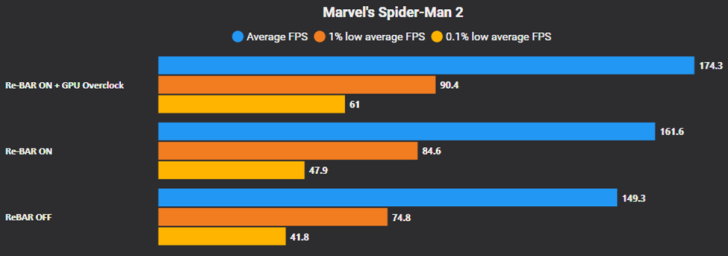
Across these cases, the benchmarks show that Resizable BAR can provide real performance improvements, particularly in games with heavy data streaming or complex world assets, and that these gains can be reflected in both average FPS and in frametime consistency. This mirrors broader community findings that while gains vary by game and testing scenario, ReBAR tends to show its value most in demanding or open-world titles.
At the same time, the differing results on my desktop and laptop PCs in Marvel’s Spider-Man 2 underscore that your mileage may vary: multiple factors such as CPU generation, CPU vendor, GPU architecture/VRAM amount and even a game’s graphics settings and testing area can all affect whether ReBAR offers an advantage. That’s why benchmarking your own system, with real gameplay loops and with your preferred graphics settings, is essential to determine whether forcing ReBAR on is a net positive for your setup.
Potential Drawbacks & Risks
Even though Resizable BAR can deliver solid performance gains in the right scenarios, forcing it on manually using NVIDIA Profile Inspector isn’t without risks, especially in games that weren’t whitelisted for it by NVIDIA. In my own testing, enabling ReBAR via Inspector caused a system freeze/lock‑up in Ratchet & Clank: Rift Apart, requiring a rollback of the driver profile to restore stability; similar reports on enthusiast forums describe crashes and freezes in this game when ReBAR is enabled, possibly due to conflicts with its Microsoft DirectStorage implementation.
In ELDEN RING, I observed significant hitches and stutters during combat with respawning skeleton enemies, which mirrors community reports of ReBAR‑related stutters in specific areas or events in that title. Third‑party coverage also notes that forcing ReBAR globally can sometimes introduce stuttering, performance regressions, or instability in games where it doesn’t mesh well with the engine’s data flow, an outcome that NVIDIA tries to avoid by only enabling ReBAR by default in validated titles.
In Battlefield 6, I encountered a memory leak issue in the game’s open beta build after manually enabling ReBAR for it in Inspector, then after the game was released, NVIDIA had actually whitelisted the game for ReBAR support, then it later reversed course after they too likely discovered the memory leak issue that ReBAR caused in the game.
More broadly, some users have reported unexpected freezes or performance issues tied to ReBAR interactions with UEFI BIOS/driver combinations, and while there isn’t a single definitive official statement yet from NVIDIA, multiple community threads and comments in tech enthusiast forums suggest that ReBAR isn’t always a win and in certain titles it may need to be disabled for stability or performance reasons.
Final Words
PCIe Resizable BAR remains one of those subtle system‑level features that can unlock measurable performance improvements in the right scenarios, from higher average framerates to smoother frametime consistency without spending a dime on hardware upgrades. For owners of NVIDIA GeForce RTX 30 Series and newer GPUs, tools like NVIDIA Profile Inspector offer a way to manually enable the feature beyond what the NVIDIA graphics drivers turn on by default, giving you the flexibility to test what works best for your setup and favorite games. With that said, results can vary by title and system, and there’s always a chance of encountering some instability or performance regressions, which is why objective benchmarking before and after this driver tweak is so crucial.
If you’ve followed the steps in this guide, take a moment to benchmark any performance changes in your chosen game, and compare before/after ReBAR metrics like average FPS, 1% low average FPS and 0.1% average FPS to see if manually forcing ReBAR on is a win for you. Then, drop your findings in the comments below, whether you saw a performance boost, performance loss or encountered some stability issues, and help the PC gaming community learn which games and systems benefit the most from this technology. And if you found this guide useful, be sure to bookmark or share it, and check back for more deep dive hardware and optimization content right here on Wccftech.


Follow Wccftech on Google to get more of our news coverage in your feeds.
VIA: wccftech.com